OM3.4: Admin > Assets > Syndications
Overview
Syndications let you push and pull assets out of or into your Brandkit to or from another connected Brandkit account — such as a partner brand, agency, or another Brandkit account. Syndicated assets stay in sync with their source automatically.
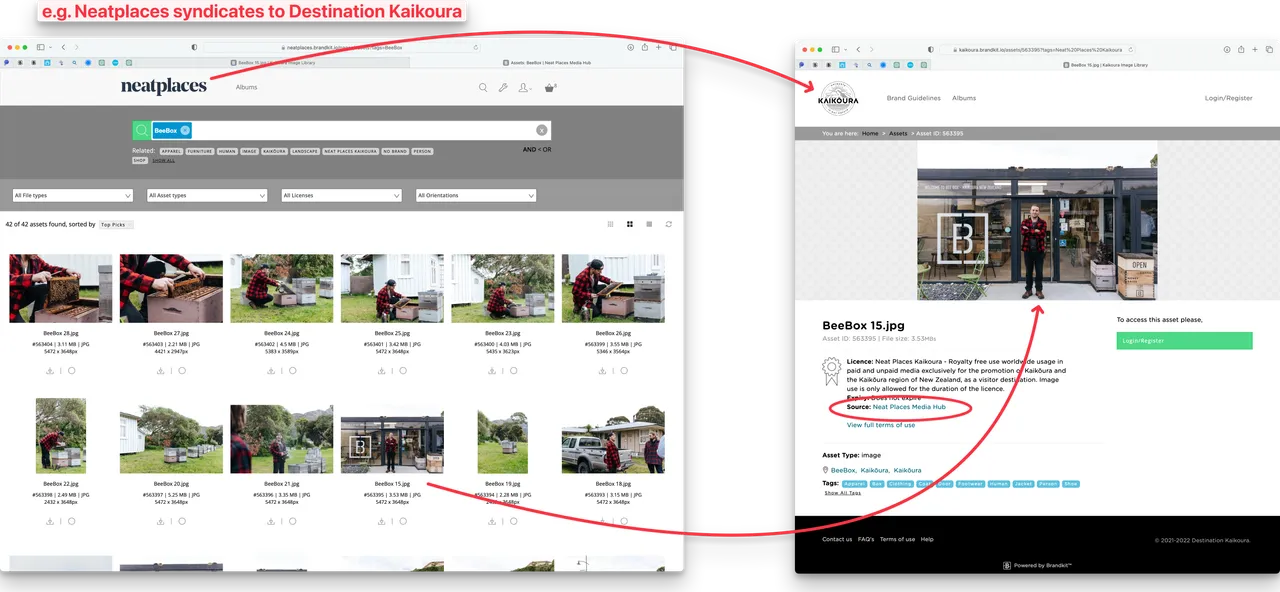
Content Syndication feature overview
How Syndications Work
A Syndication (or Syndicated Asset) is an Asset owned and stored in one account (the source account), shown and downloadable from another account (the receiving account).
Syndication requires that a Source Account and Receiving account are connected (see below), and that the Source Account explicitly syndicates an Asset, and the Receiving account explicitly accepts the syndicated Asset.
.
Syndicated Assets update automatically no matter where they are shown, based on any changes made in the Source Account.
Useful for:
- Receiving assets from a parent brand, partner brand, Head Franchise, or agency
- Keeping regional libraries in sync with a central library
- Sharing content across multiple Brandkit portals
Setting up Account Connections
Before any Syndication can take place, any participating accounts must be connected.
- Account Connections first require commercial agreement between the connecting accounts.
- Once commercial agreement is reached, all parties must swap Account Connection Keys.
- You will find your account connection key in Admin > Settings > Account Connections under Your Account Key.
- Pass this Key to the Account you wish to connect with (if you want to receive syndicated assets), or grab their key and add it here (if you want to syndicate your Assets to them), or do both for two way syndication.
Inbound account options
For Inbound account connections you can also set a default Vault and whether you want to automatically accept Syndications (rather than having to explicitly accept individual Assets).
- Navigate to Admin > Settings > Account Connections
- Click on the Account Name under Inbound Account Connections
- Choose the Vault
- Check the Checkbox of you want to auto Accept syndications from this connected account.
How to Syndicate Assets (Outbound)
Once your Account Connections are setup (outbound), you can syndicate Assets out (you are the Source account) from your Basket.
- Select Assets to syndicate.
- In the Basket menu click Share > Syndicate
- Select the Account you wish to syndicate too.
- Write an optional message for the receiver Admins
- Click the Syndicate button.
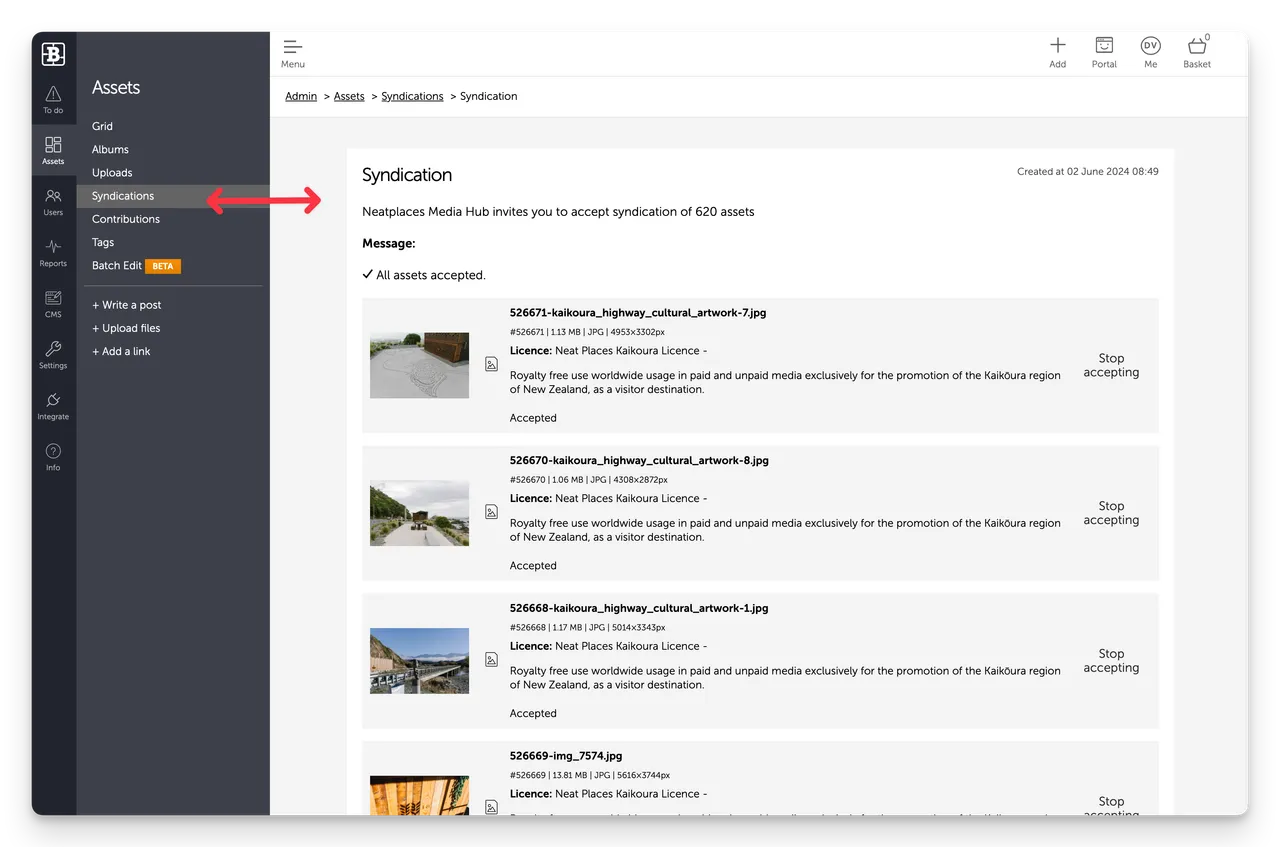
You will be able to see your Syndications in the Admin > Assets > Syndications, including a link to view details of each Syndication, and the ability to Stop Syndicating for individual Assets.
Managing Inbound Syndicated assets
Syndicated assets appear alongside uploaded assets in your library. However these inbound Syndicated assets belong to the source account - and so you have limited ability to manage these Assets and generally you cannot edit them at all m- with a couple of exceptions.
You can:
- Filter the Grid by Source: Syndicated to view them separately
- Assign them to albums like any other asset
- Control visibility using standard role and vault settings
Note: syndicated assets cannot be edited directly — changes must be made at the source.
Removing an Inbound Syndicated Asset
- Navigate to Admin > Assets > Syndications
- Select the syndication
- Click Reject next to any asset to be removed
This will remove individual syndicated Assets
To remove all Syndicated Assets, simply remove the Account Connection
- Navigate to Admin > Settings > Account Connections
- Find the Account to be removed and click the trash can icon to remove the connection.
This will prevent any new syndications from that account and remove any currently Syndicated Assets.
Managing Outbound Syndicated assets
Outbound Syndicated assets are just normal Assets in your own Brandkit. Just manage and edit them as you would normally.
Note that only Active Assets can be syndicated. Any ASsset that is not visible in your Portal (e.g. Expired, Archived, Not yet Released, Deleted, etc) will not be visible in the Receiving Account
You can find a list of Assets that you have Syndicated outwards in the Syndications page.
- Navigate to Admin > Assets > Syndications
- Select an outbound Syndication to see a list of the syndicated assets
- Here you can click the Stop button to Stop syndicating individual Assets.
Stop Syndicating Outbound Assets
To stop Syndicating outbound Assets
- Navigate to Admin > Assets > Syndications
- Select an outbound Syndication to see a list of the syndicated assets
- Here you can click the Stop button to Stop syndicating individual Assets.
This will stop syndication of individual Assets.
To stop all outbound Syndication of Assets to a connected Account, simply remove the Account Connection
- Navigate to Admin > Settings > Account Connections
- Find the Outbound Account to be removed and click the trash can icon to remove the connection.
This will prevent any new syndications to that account and stop syndicating any currently Syndicated Assets.
OM3.4: Admin > Assets > Syndications
Syndications let you push and pull assets outof or into your Brandkit to or from another connected Brandkit account — such as a partner brand, agency, or another Brandkit account. Syndicated assets stay in sync with their source automatically.