Brandkit Platform Tour: Galleries
Galleries
Easily create an shareable or embeddable Image Gallery
Embeddable Galleries
You can embed a Gallery on a web page in your Brandkit Portal, a Post or a 3rd party website with a simple copy and paste-able script or iframe code. The layout is customisable in Brandkit. Each image links back to the source Asset in your Brandkit or a configurable CTA link
(e.g. a booking page, a recipe, an ecommerce page, a YouTube video, etc)
(Fig: Actual example of an embedded gallery)
Here's another example with a horizontal scrolling layout.
Galleries are 'Shoppable' too
Just like Shoppable Instagram, Brandkit assets can be configured to link to a customisable CTA URL.
So for example you could link the cute Retriever with Rose image to an Ecommerce page for Flowers (e.g. Interflora.co.nz). Or you could link an Image of a beautiful Travel Destination to a Booking Page, or any other type of page for that matter. Brilliant.
Learn more about Shoppable Assets here

(Fig: Screenshots showing a shoppable asset in a grid overlaid on an Interflora ecommerce page)
How it works
(1) Select some Assets
(A) Find and select some Assets so they are in your Basket. (B) Click Save and select (C) Gallery, then (D) New Gallery and (E) enter a Gallery Name.
(2) Configure your Gallery
(A) Enter a Gallery Heading, and then (B) configure display and layout options. (C) Save and grab the Embed code or Magic-link.
(3) Deploy to your website, or share the Magic-link and enjoy!
Once deployed, every view of that Gallery will be delivered via the Brandkit CDN (content delivery network) with low latency and high speed.
Learn more about how to Create Galleries here.
CDN Usage Analytics
Brandkit Galleries use the Brandkit CDN to deliver images to Galleries efficiently. You can then track your Brandkit CDN usage across Galleries with CDN traffic statistics. With dedicated CDNs for image and video embeds.
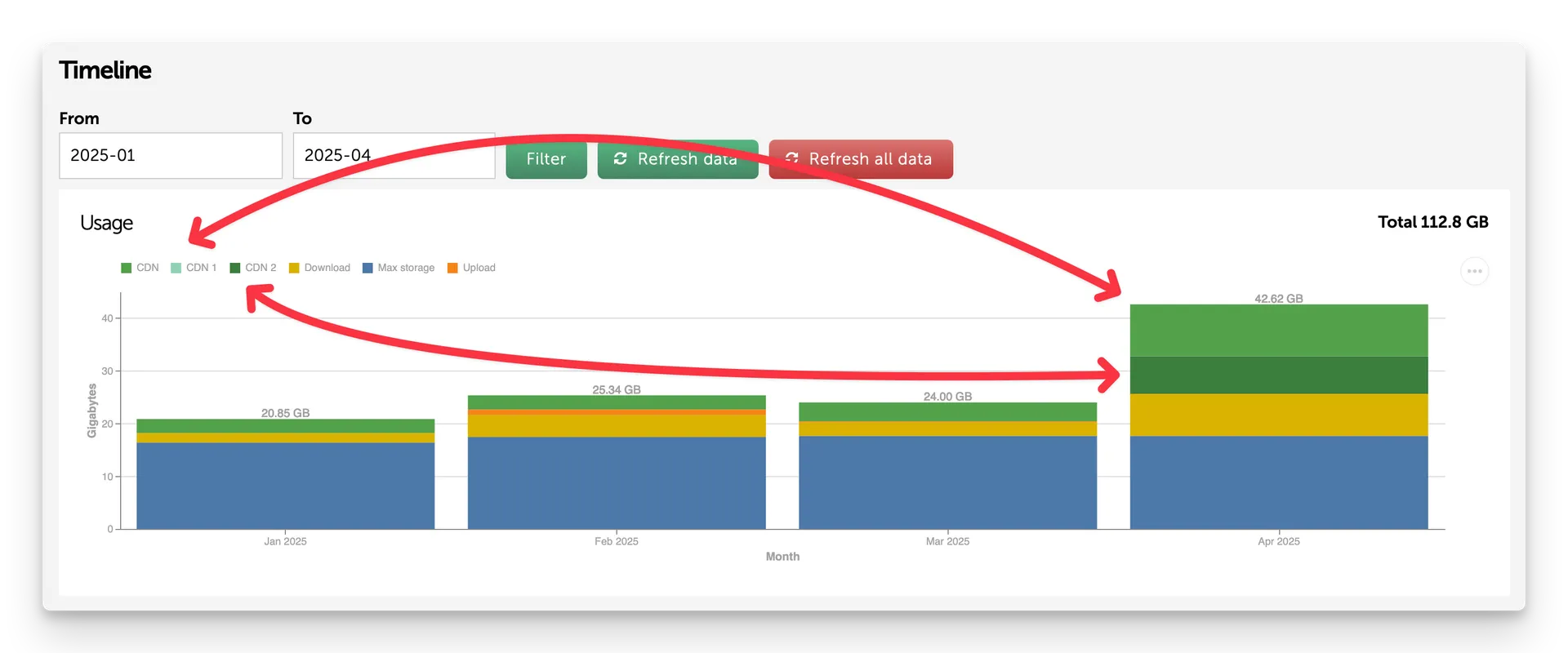
(Screenshot of an example account dashboard - showing CDN usage)