New Feature: Share authentic media to Instagram (directly from Brandkit)
We've often spoken about the importance of Authentic Content, and this is more important than ever in a world inundated with Generative AI.
Recently we introduced new integrations between Brandkit and Adobe Express and Canva.
Those integrations with design tools make it super easy to create social media ads, graphics and 'designs' using the images in your Brandkit DAM library, and even post to various social media platforms from within those design applications.
That's all well and good.
But there was something missing.
While there is certainly demand for designing graphics, ads and tiles for social media - promoted by the likes of Canva, Adobe and others.
Our preference will always be for the authentic raw unedited photos and video in our social feeds.
...and we reckon most of your audience prefers that authentic content approach as well.
**So we flipped the script. **
Being authentic to us means posting authentic unadulterated photography and video. That means a captured image or scene - rather than a designed, edited or generated image or video.
Now you can post your raw unedited photos and video housed in your Brandkit DAM/Asset Library - directly to Instagram without any editing.
Then just add your message, comment, etc and you're done - no design edits needed.
A secondary benefit of this approach is that you don't need to worry about resizing or cropping your image for each Social Media channel, because there are no logos, or text overlays that could be obscured in your social media feed.
Less work, more authentic content, less sales pitch, more interesting.
We like that.
Why Instagram™
We wanted to start with one significant Social Media Network (others will likely be added over time) and for us the obvious choice was the image centric Instagram.
For our customers - great photography is the cornerstone of their content marketing strategy. From Tourism orgs to food producers.
And so Instagram was the obvious choice to start with.
How to use the new Share to Instagram feature.
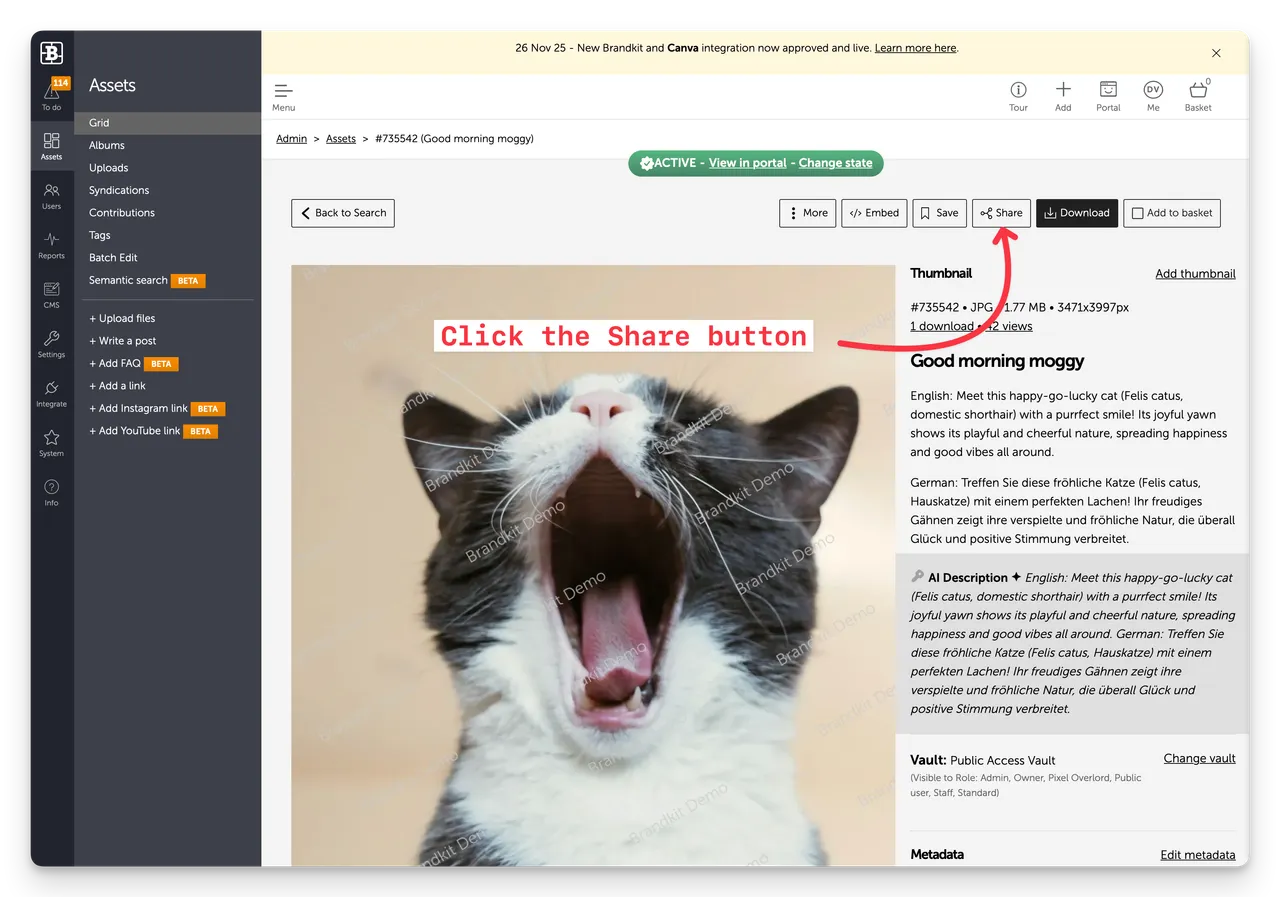
In Admin (this is an Admin only feature) find an Image you want to share to Instagram.
- Find an image
- Click the Share button
- Click the Instagram icon to select Share to Instagram
- Edit your caption (auto-populated from Asset metadata)
- Click Publish to Instagram when you are ready.
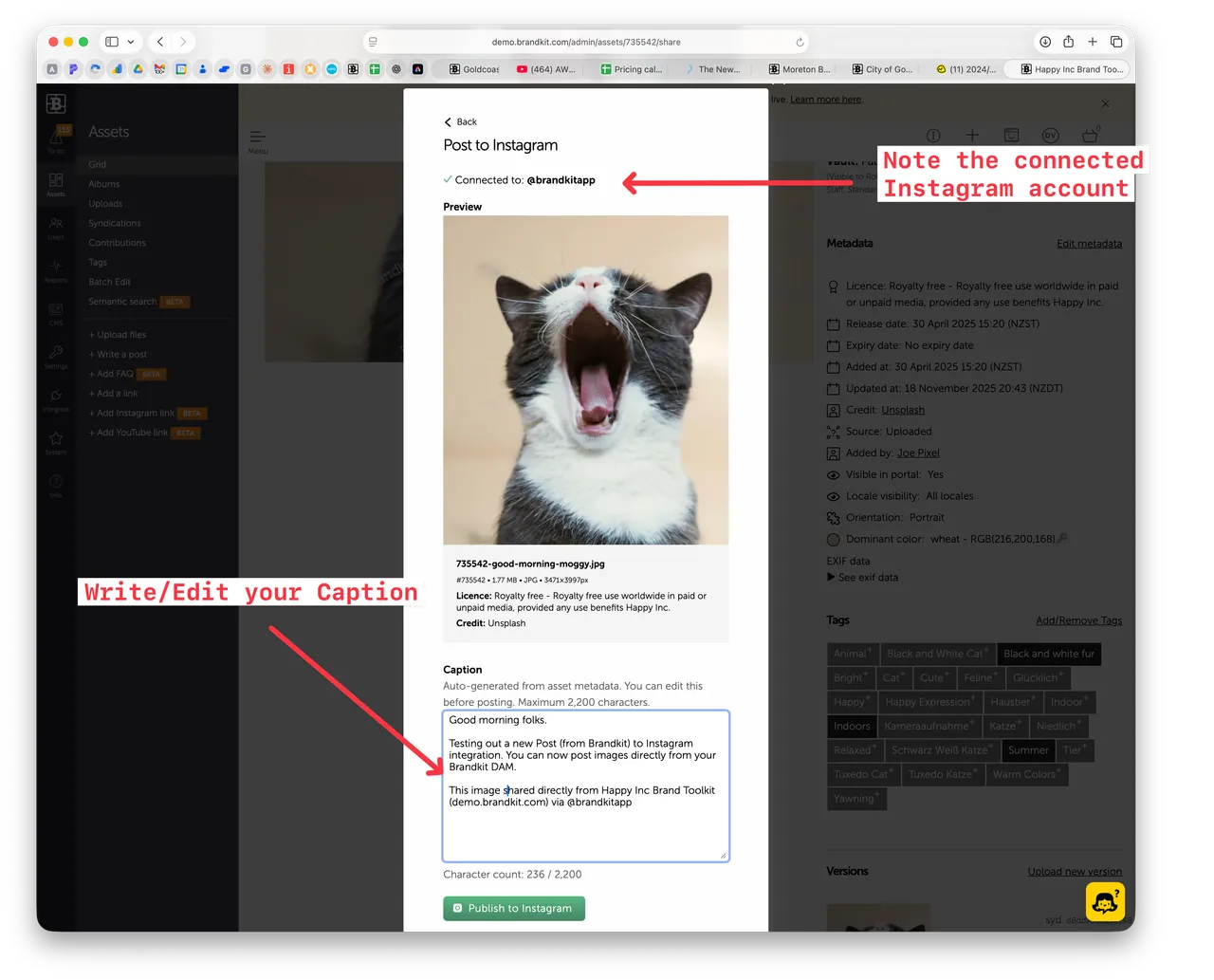
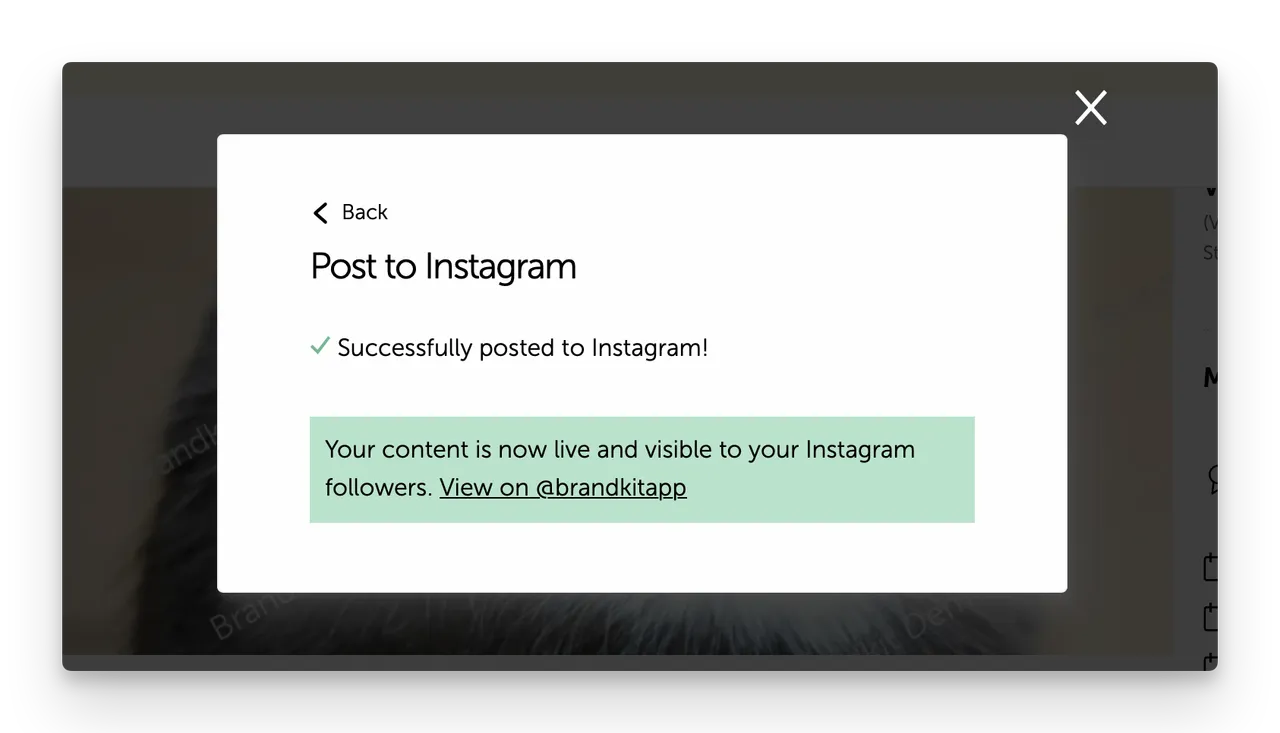
After clicking Publish, a confirmation screen will be shown with a link to your connected Instagram account - so you can check it.
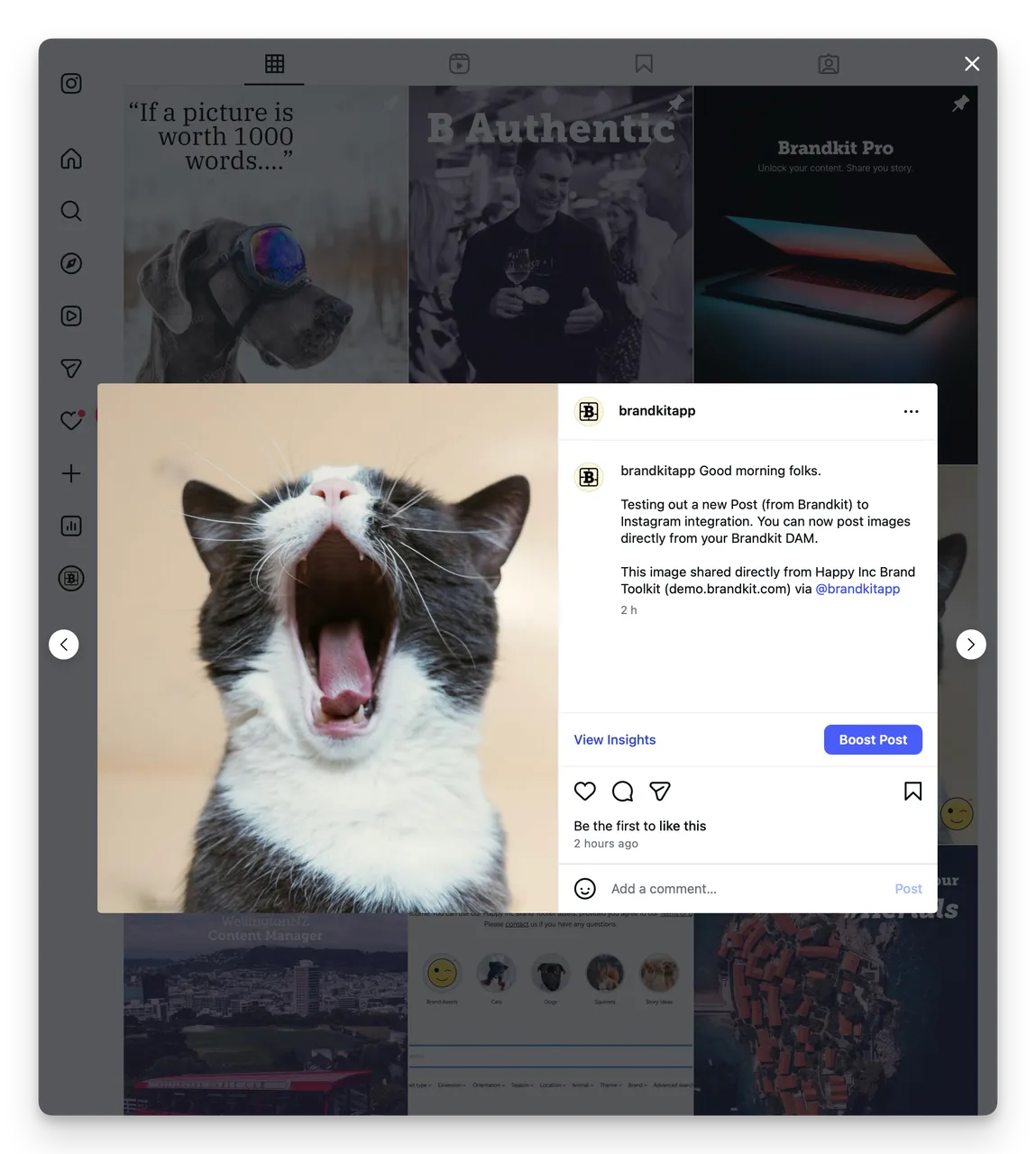
Checking your Instagram account should now show the new post.
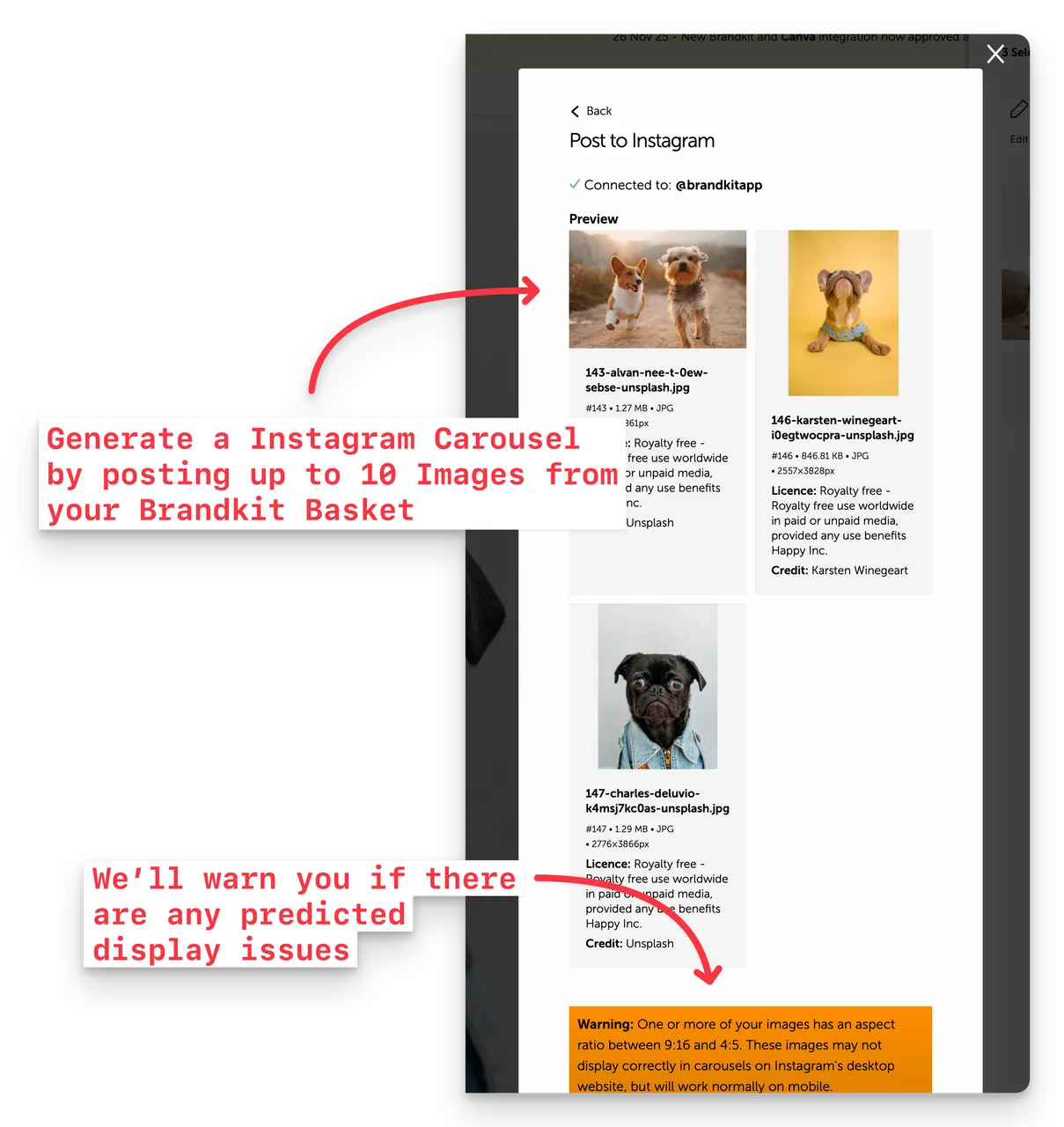
Fastest way to create an Instagram Carousel
You can also easily share multiple images (up to 10) from your Brandkit Basket to Instagram - to create an Instagam Carousel.
In Brandkit:
- Find and select up to 10 images so that they are in your Basket (remove any additional assets)
- In the basket - click the Share button
- Click the Instagram icon to select Share to Instagram
- Edit your caption (auto-populated from Asset metadata - descriptions are not added for multiple Assets)
- Click Publish to Instagram when you are ready.
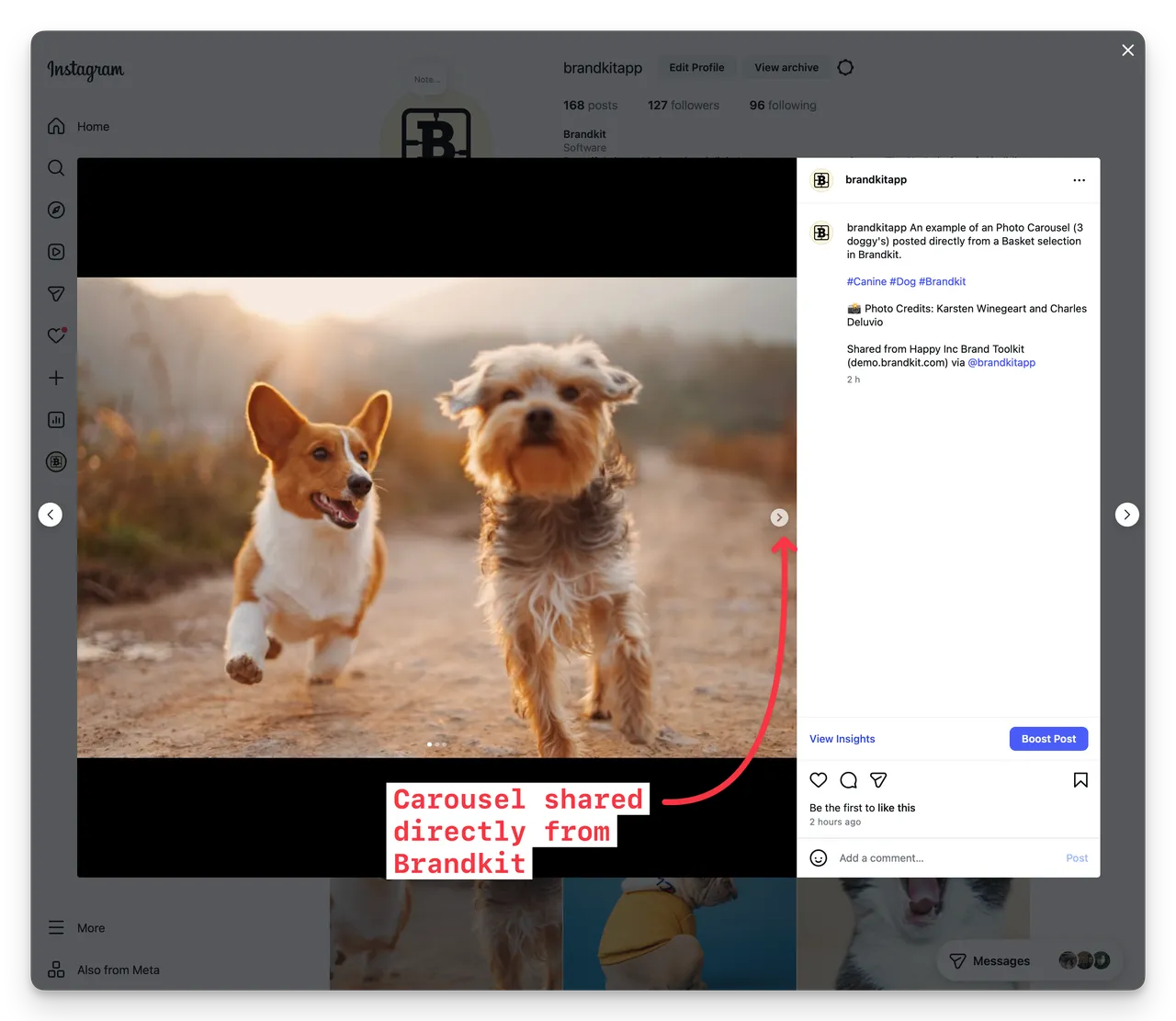
Once you publish - check your Instagram account and you should see your new Carousel post.
What about Video?
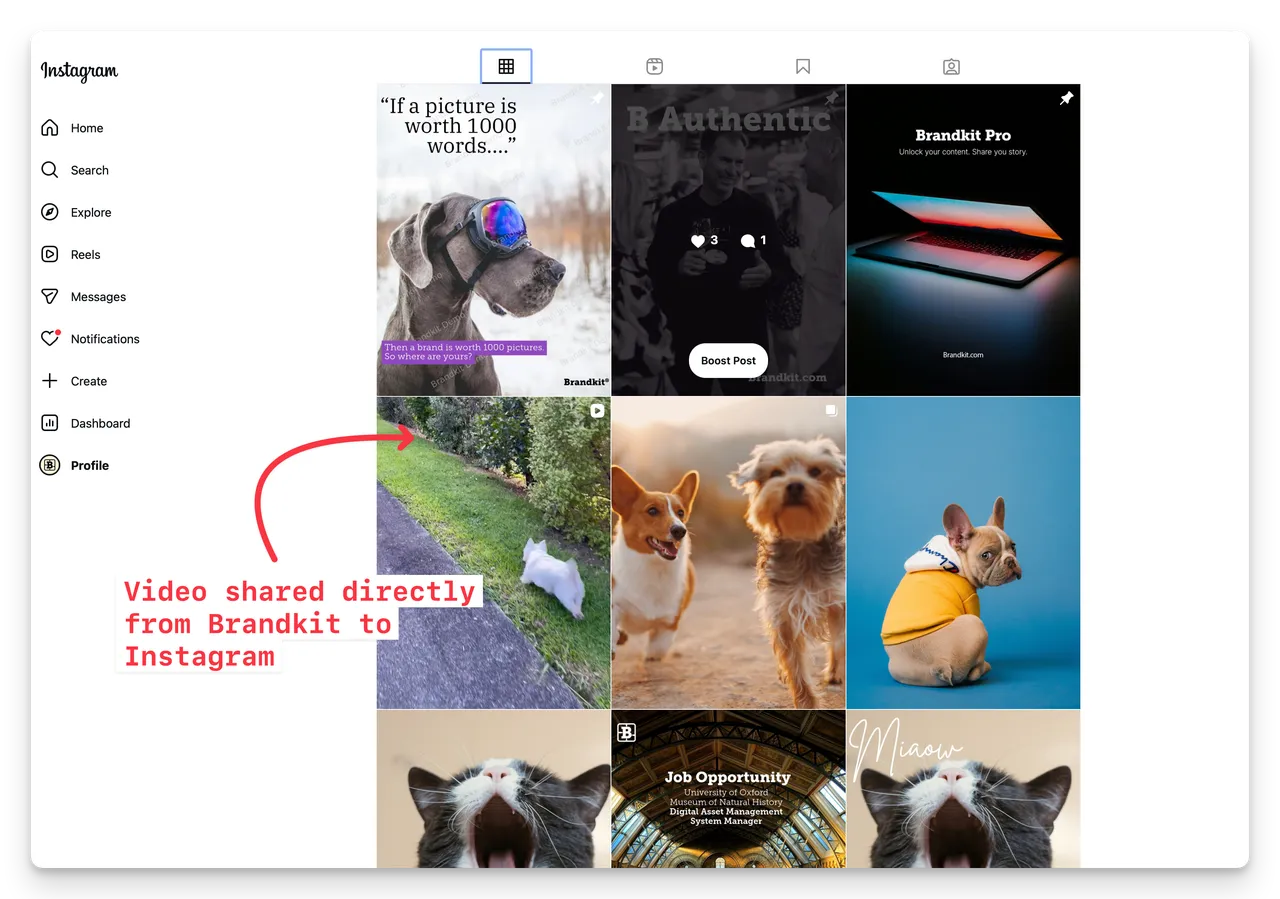
Yes you can also share video to Instagram using the same methods above. Limited to one video at a time.
Follow the same steps for an Image above.
Then check in your Instagram account.
Easy.
Reporting and Audits
Ok so now we're posting images and video directly to Instagram, how do we keep track?
Audit trails.
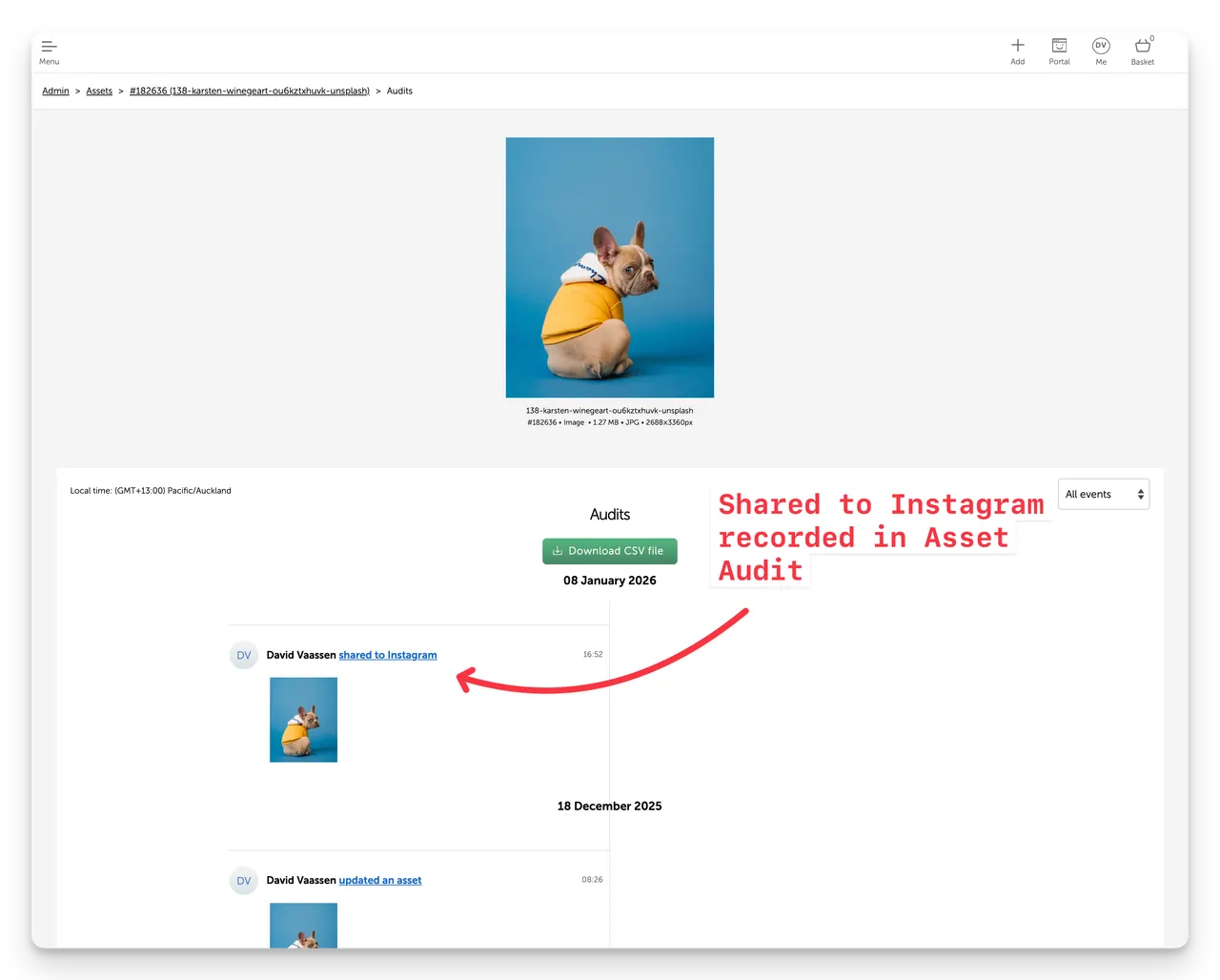
When you Share to Instagram with this new feature we also record the Post in the Asset Audit trail of the Asset you posted.
- Navigate to the Asset in Admin
- Scroll to the bottom of the Asset page and click the See Asset Audits link.
- You'll see an entry for the Post in the Asset's timeline.
Happy sharing ... Enjoy :)
New Feature: Share authentic media to Instagram (directly from Brandkit)
Now you can post your raw unedited photos and video housed in your Brandkit DAM/Asset Library - directly to Instagram without any editing.
Then just add your message, comment, etc and your done - no design edits needed.