OM3.5: Admin > Assets > Contributions
Overview

Contributions lets photographers, agencies, staff and other non Admin users submit (contribute) files directly to your Brandkit, which go into a moderation queue for review and acceptance by Admins, rather than publishing directly.
See Contribution Feature Overview
How it works
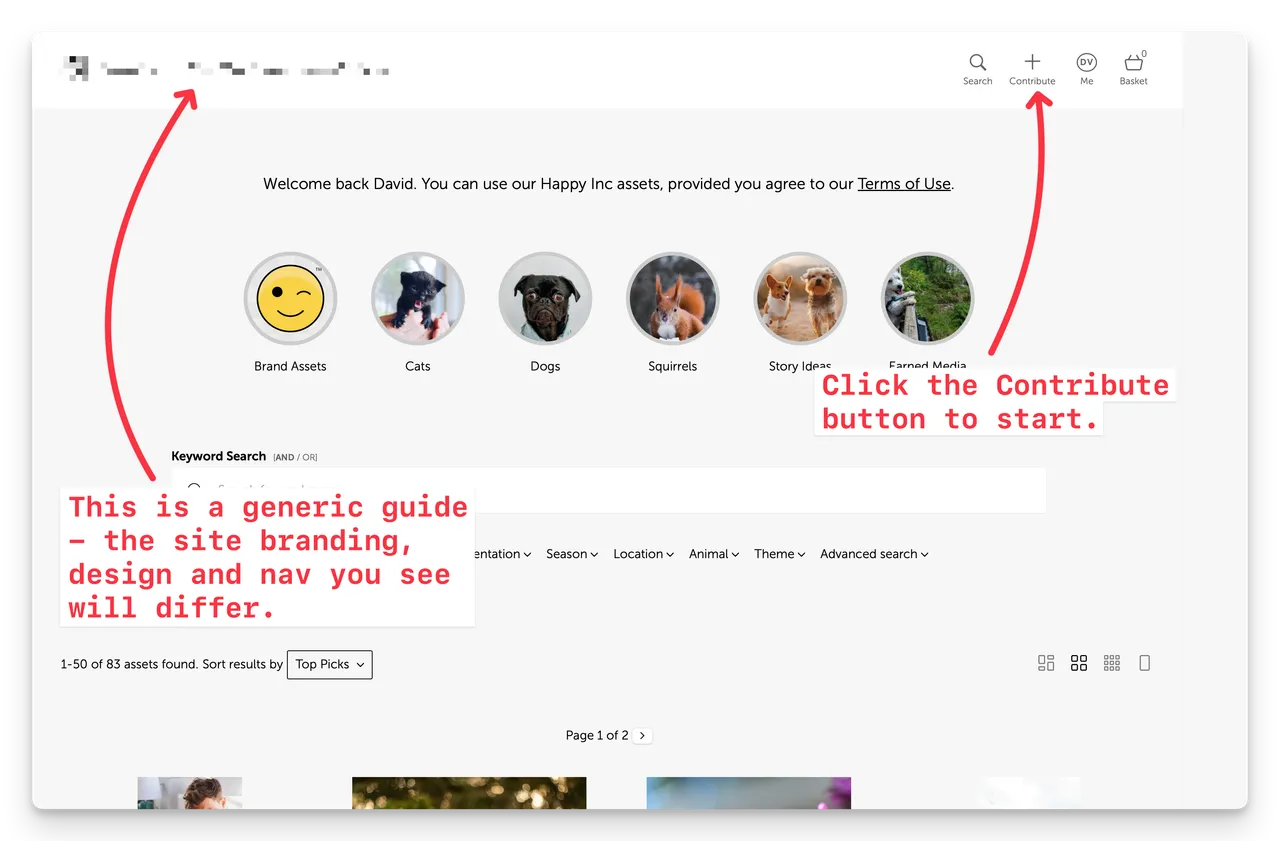
Registered users can click the Contribute button (or can be sent a link to the Contribution page) in the Portal to access the Contribution workflow and follow predefined steps in order to contribute (upload) files:
- Agree to Contribution Terms
- Upload Files
- Describe files
- Describe Contribution
- Review and submit
Admin users are then notified (by email and To Do list) about new Contributions, and can Review and Accept a Contribution (or individual files) to create new Assets.
Configuring Who Can Contribute
Users must be registered and logged in to Contribute.
However the Contribute button and the ability to Contribute is determined by User Role settings.
You'll need to enable the Contribute Assets Ability for each User Role you want to be able to Contribute.
- Navigate to Admin > Settings User Roles > Role
- Enable the Ability Contribute Assets for the role by clicking the checkbox
- Save
Configuring Global Contribution Settings
There are global configuration options for Contributions that apply to all Contributions in your account.
- Navigate to Admin > Settings > Contributions
- Choose the Data collection fields you want to include in the form by selecting Required, Optional or Hidden for each data input.
- If you have already setup a custom form for use in Contributions ( see Admin > Settings > Forms), you can select it here to gather additional data about the contribution.
- We have standard Terms of Contribution that will be used by default, but you can optionally add your own Terms of Contribution.
- Save your changes.
Submitting a Contribution
Users who have the Ability enabled for their User Role can submit a Contribution via the Contribute button.
This Contribution will be listed in their user history and user profile audit trail.
Users can see their Contribution history under the Me menu
Me > My Contributions
Reviewing a contribution
All Admins will receive an email notification (provided they have not unsubscribed from the Contribution notification in their Profile). Plus any new Contributions will appear in the To Do list (Admin > To Do)
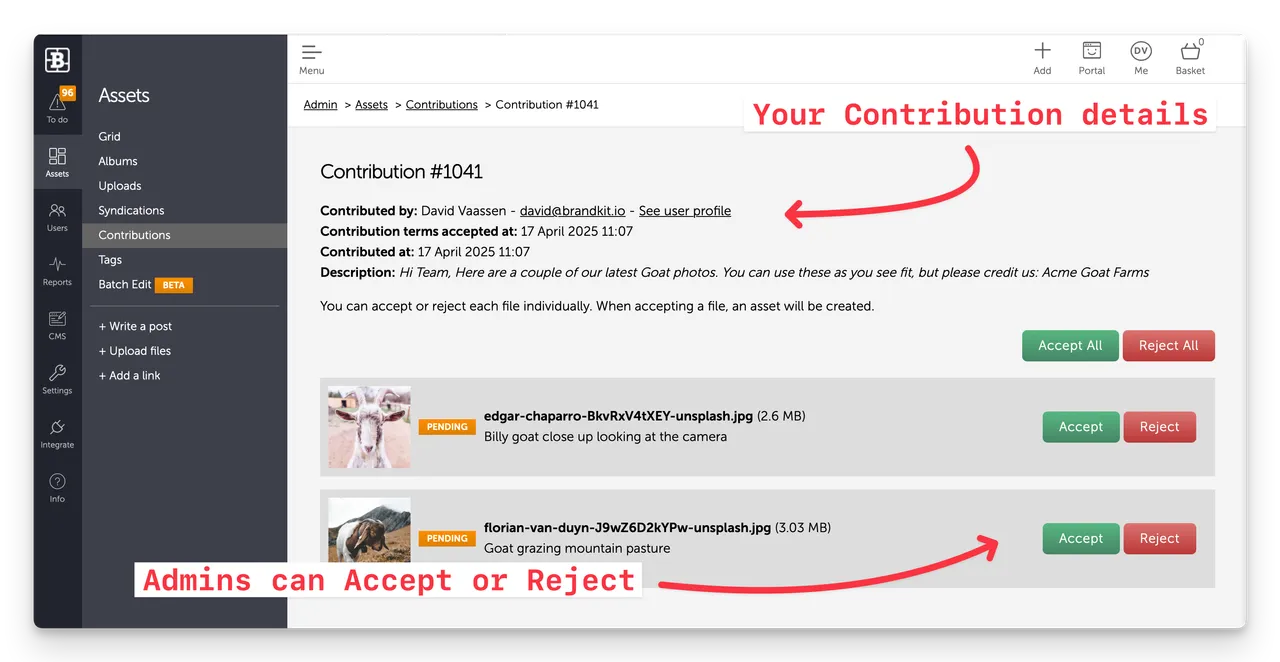
- Navigate to Admin > Settings > Contributions (to see all Contributions) OR Admin > To Do > Pending Contributions (to see only unprocessed Contributions.
- Click View on a Cointribution to review and Accept or Reject contributed files.
- Click Accept or Reject on individual files or Accept All/Reject All to generate Assets from the Contributed files.
- Asset will be generated as Draft Assets - you will still need to edit, tags, put in the right vault, etc before Approving to publish.
OM3.5: Admin > Assets > Contributions
Contributions lets photographers, agencies, staff and other non Admin users submit (contribute) files directly to your Brandkit, which go into a moderation queue for review and acceptance by Admins, rather than publishing directly.