OM3.9: Admin > Assets > Galleries
Overview
Galleries are curated, visual presentations of assets — designed for sharing with external audiences such as media, partners, or clients. Unlike albums/collections (which are internal library organisation tools), galleries are public-facing and presentation-focused.
They can be shared via a magic link, or be embedded in emails , web pages, and 3rd party websites.
Galleries vs Albums
| Albums | Galleries | |
|---|---|---|
| Purpose | Organise the internal library | Present assets to an external audience |
| Audience | Portal users | Anyone with the link |
| Access control | Role-based | Link-based (no login required) |
| Appearance | Standard library grid | Branded, presentation layout |
Example embedded Gallery
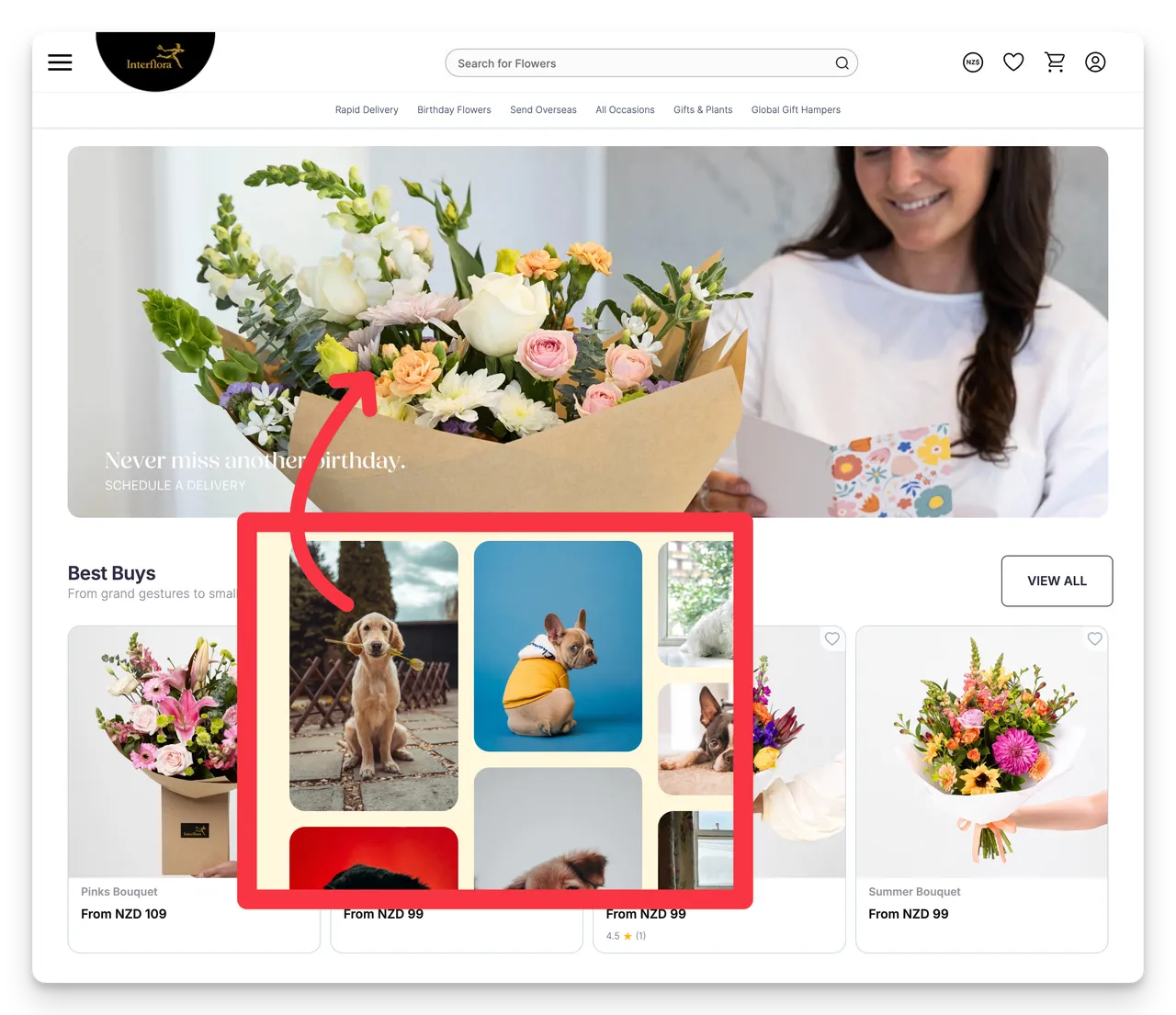
(Fig: An actual embedded Gallery - using an iframe)
Creating a Gallery from Scratch
- Navigate to Admin > Assets > Galleries
2.Click the New Gallery button - Give it a sensible name
- Click the Add Assets button to select Assets (or use the Basket option explained below).
- Click the Next button
- Configure your Gallery options in the Customise and Preview step
- Click Save to display the Share and Embed section
- Copy Magic link (URL) or Embed code (script or iframe) and deploy.
Creating a Gallery from the Basket
- From the Basket (with Asset selected)
- Click Save
- Select the Gallery option
- Choose New Gallery and add a sensible Gallery Name
- Click the Add Assets button to select additional Assets if required.
- Click the Next button
- Configure your Gallery options in the Customise and Preview step
- Click Save to display the Share and Embed section
- Copy Magic link (URL) or Embed code (script or iframe) and deploy.
Managing galleries
From the Galleries list you can:
- Edit — update Assets, layout, or settings
- Embed — copy the gallery link or embed code
- Delete — permanently remove the gallery
Note: While adding Assets or editing Assets included in Galleries will automatically update a previously shared or embedded Gallery - changes to layout and branding will not. You will need need to re-share or re-embed your Galleries for those changes to be seen.
Gallery settings
To configure default gallery behaviour across your account, navigate to Admin > Settings > Galleries.
Options include:
- Layout options
- Branding options including page header style, button style and fonts (mostly for shareable magic links)
Tips
- Galleries are ideal for press kits, campaign asset packs, or event photo shares.
- Assets shared in Galleries link back to the Asset page in your Portal - or to the CTA you have added to the Assets in your Brandkit. This can be a great way to get journalists to regiuster and the download an image. Or link a gallery image to an Ecommerce page or a story on another site.
- Assets in Galleries can display an information icon with all the pertinent Licencing details.
- Set an expiry date on Assets in galleries so that they are removed automatically on expiry date.
- Assets in a gallery remain in the main library — archiving or deleting an asset in the library affects it in any gallery it appears in.
OM3.9: Admin > Assets > Galleries
Galleries are curated, visual presentations of assets — designed for sharing with external audiences such as media, partners, or clients. Unlike albums/collections (which are internal library organisation tools), galleries are public-facing and presentation-focused. They can be shared via a magic link, or be embedded in emails , web pages, and 3rd party websites.