OM4.4: Admin > Users > Send Email
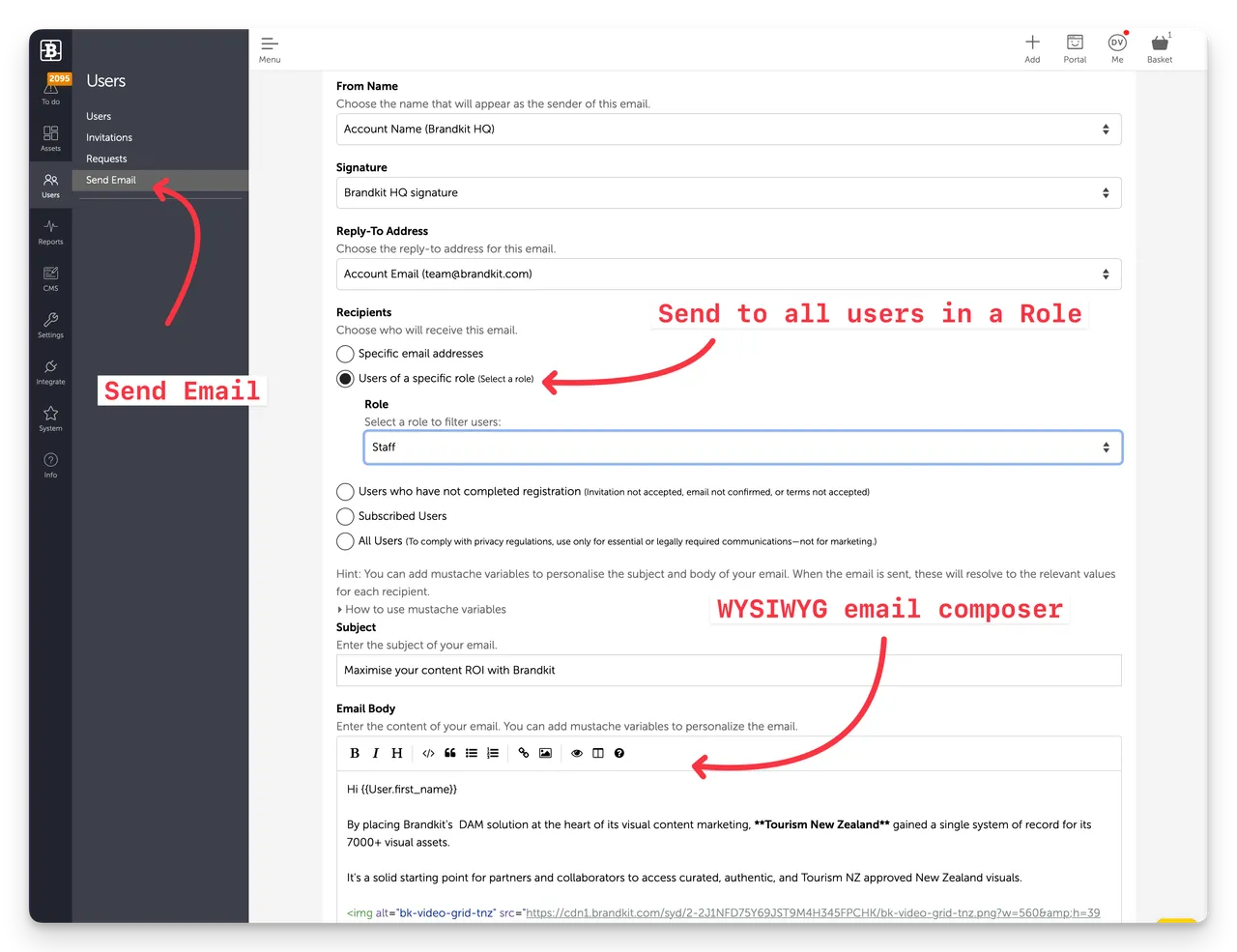
Send email lets you send a custom email message directly to email recipients and subscribed users on your account from within Brandkit — without needing an external email tool. Use it to communicate updates, announce new content, or send reminders to your team.
Navigate to: Admin > Users > Send email
HTML Email Template
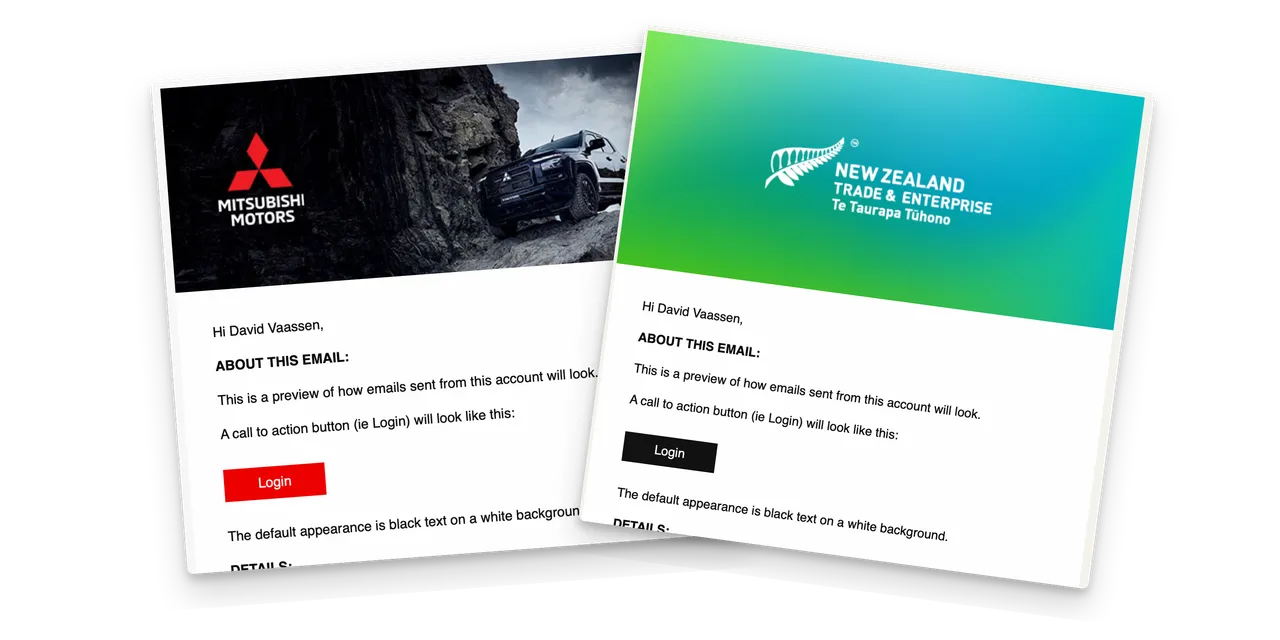
The Send Email tool uses your account's custom HTML email template.
Navigate to Admin > Settings > Email to configure your HTML email template.
Sending an email
- Admin > Users > Send email
- Choose your recipients — select individual users, filter by role, or send to all users
- Enter a subject line
- Write your message in the editor using Markdown code or the WYSIWYG controls.
- You can insert images fro your Brandkit library by clicking the image icon.
- You can preview your email as you type with a split screen view, by clicking the Split screen icon.
- Click Save to Preview
- Send a test email to yourself by entering your email address, and selecting an email type. We strongly recommend you test any email you create before send.
A confirmation shows how many users the email was sent to.
Recipient options
You can send emails to:
- Specific email addresses - you can enter recipient email addresses directly (do not have to be registered users)
- Users of a specific role — you can select all subscribed users in a User Role
- Users who have not completed registration (User Invitation not yet accepted, email not confirmed, or terms not accepted)
- Subscribed Users - all subscribed users
- All Users - all registered users (To comply with privacy regulations, use only for essential or legally required communications —not for marketing.)
Personalise with Mustache Variables
You can use Mustache Variables to personalise your emails.
You can do this by expanding the "How to use mustache variables" link and copying the mustache code block that is appropriate.
e.g. {{User.first_name}} - this inserts the recipients first name (if the recipent is a registered user (falls back to email address.
Example of how you would write this in your email body:
Hi {{User.firstname}}, Hope you are well ....
Tips
- Use Send email to notify users when significant new content has been added to the library.
- Keep messages short — users are more likely to act on a focused, single-purpose email.
- For automated notifications (e.g. when an asset is approved, a request is actioned, etc), configure those separately in Admin > Settings > Notifications.
~
OM4.4: Admin > Users > Send Email
This entry describes how to send emails to users from the admin panel, accessible via Admin > Users > Send Email. It covers navigating to the Send Email function and composing messages to users.