How to Syndicate Assets Between Connected Accounts
To syndicate assets between connected Brandkit accounts, follow these steps:
Overview of Syndications
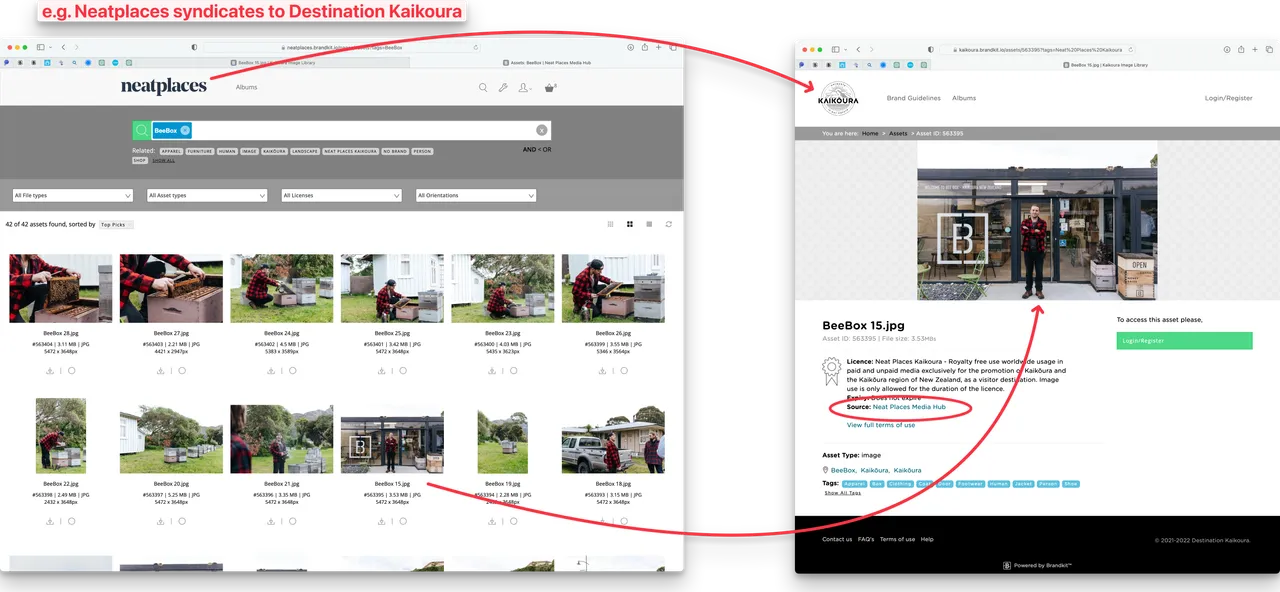
Syndications allow you to push and pull assets to and from another connected Brandkit account, such as a partner brand or agency. This ensures that syndicated assets remain in sync with their source automatically. Syndicated Assets remain owned by the origin account at all times, and the connection is real-time - meaning if the origin account archives a syndicated Asset, it is automatically removed from the receiving account in real-time.
Think of Syndication as distributed distribution. Like a news organisation syndicating a news story to other news organisations for wider distribution of the original story.
Setting Up Account Connections
Before you can syndicate assets, ensure the participating accounts are connected:
- Establish a Commercial Agreement: Ensure there is a mutual agreement between the accounts you wish to connect.
- Swap Account Connection Keys:
- Locate your Account Connection Key in Admin > Settings > Account Connections under Your Account Key.
- Share this key with the account you wish to connect or acquire their key if you intend to receive assets.
- Configure Inbound Options: You can set a default vault and may choose to accept syndications automatically from connected accounts.
You may need to contact Brandkit Support to setup your account connections.
How to Syndicate Assets (Outbound)
Once connected, follow these steps to syndicate assets:
- Select Assets: Navigate to your asset basket and choose the assets to syndicate.
- Initiate Syndication: In the Basket menu, click on Share > Syndicate.
- Choose Destination Account: Select the account you want to syndicate to.
- Optional Message: Include a message for the receiving Admins if desired.
- Complete Syndication: Click the Syndicate button.
Managing Inbound Syndicated Assets
Inbound syndicated assets will be visible alongside your uploaded assets. These assets belong to the source account, so management options are limited:
- You may view, filter, assign to albums, and control visibility via Vaults and User Roles
- To remove an asset, either reject individual inbound assets or delete the account connection to eliminate all syndicated assets.
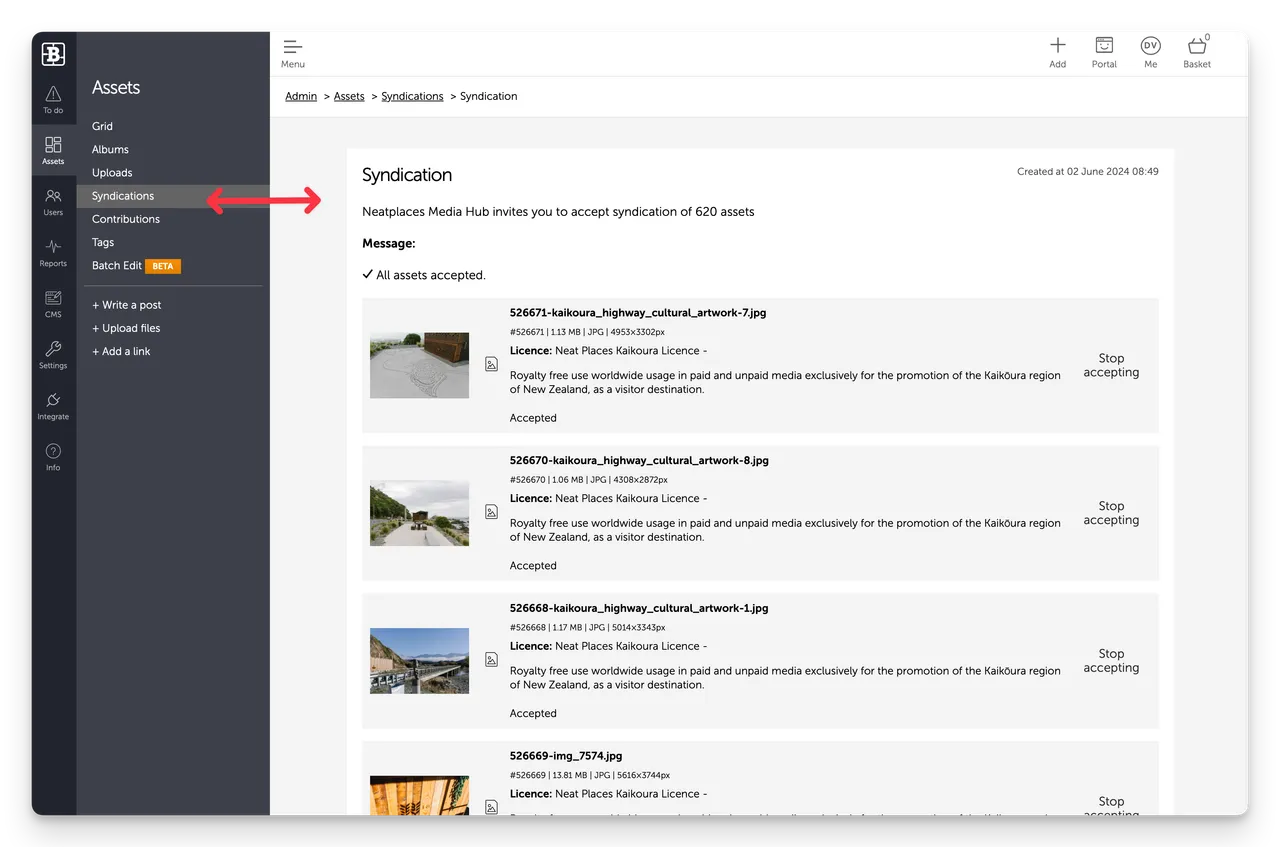
- Navigate to Admin > Assets > Syndications to see a list of Inbound and Outbound Syndications
- Click View to view a Syndication
- For Inbound Syndications you can Accept or Reject or Stop Accepting
- When accepted the Asset will be added to the Vault setup in your Account Connection settings as a draft Asset.
- You can then navigate to the Asset(s) in your Asset Grid, and tag, organise and approve the Asset to publish to your Portal when your are ready,
How will Syndicated Assets appear in the receiving account?
Assets will appear in the receiving account's portal (once approved/published by the recipient account) more or less the same way as in the origin's portal with one major difference —the Asset's Source will be displayed with the name of the Origin Brandkit account.
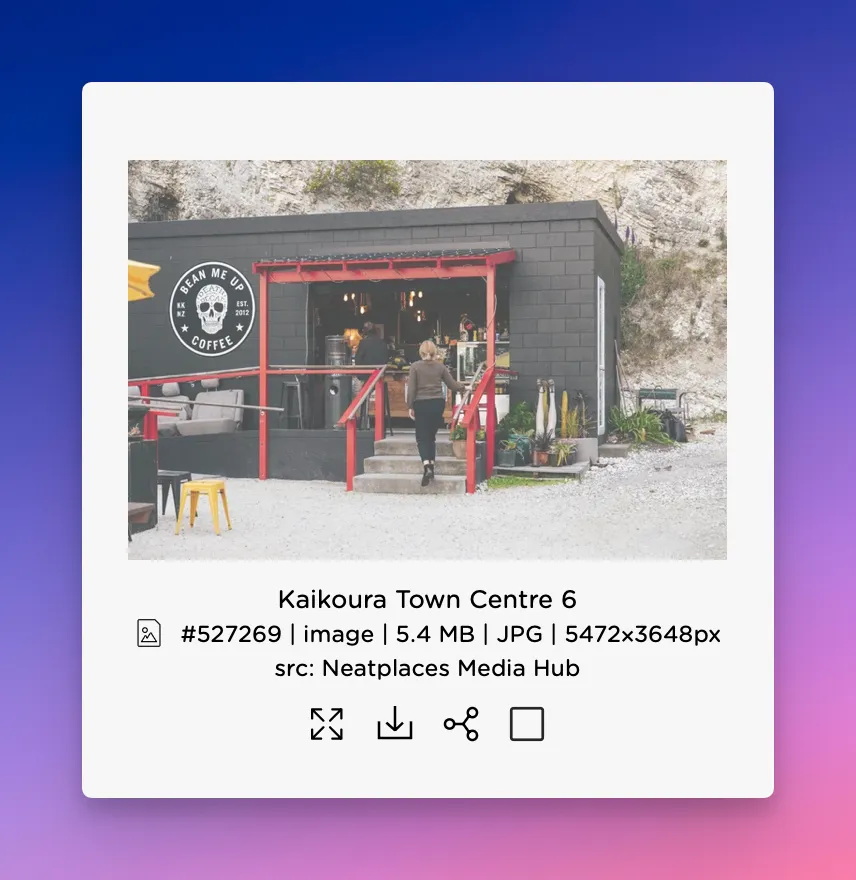
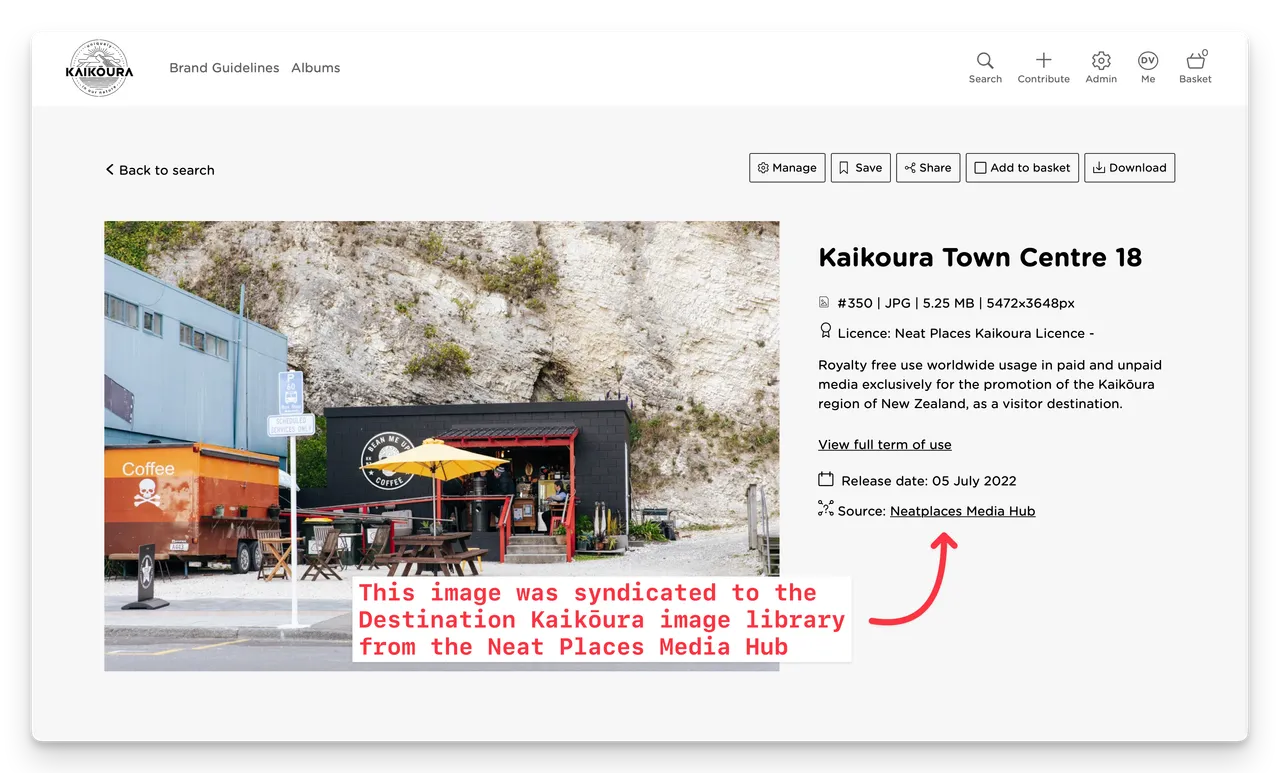
For end users they will be able to download the Asset alongside any other accessible Asset in the Portal they are visiting.
Notes
- Ensure that only active assets are syndicated, and remember that all changes made to the assets in the source account will automatically be reflected in the receiving account.
- For more detailed information, you may refer to the Content Syndication feature overview.
Happy branding :)
How to Syndicate Assets Between Connected Accounts
Discover how to syndicate assets between connected Brandkit accounts. Send assets to partners with real-time syncing while they remain owned by the origin. Learn setup, outbound/inbound steps, and how syndicated items appear in the destination portal.