


OM3.2 Assets > Albums
Overview
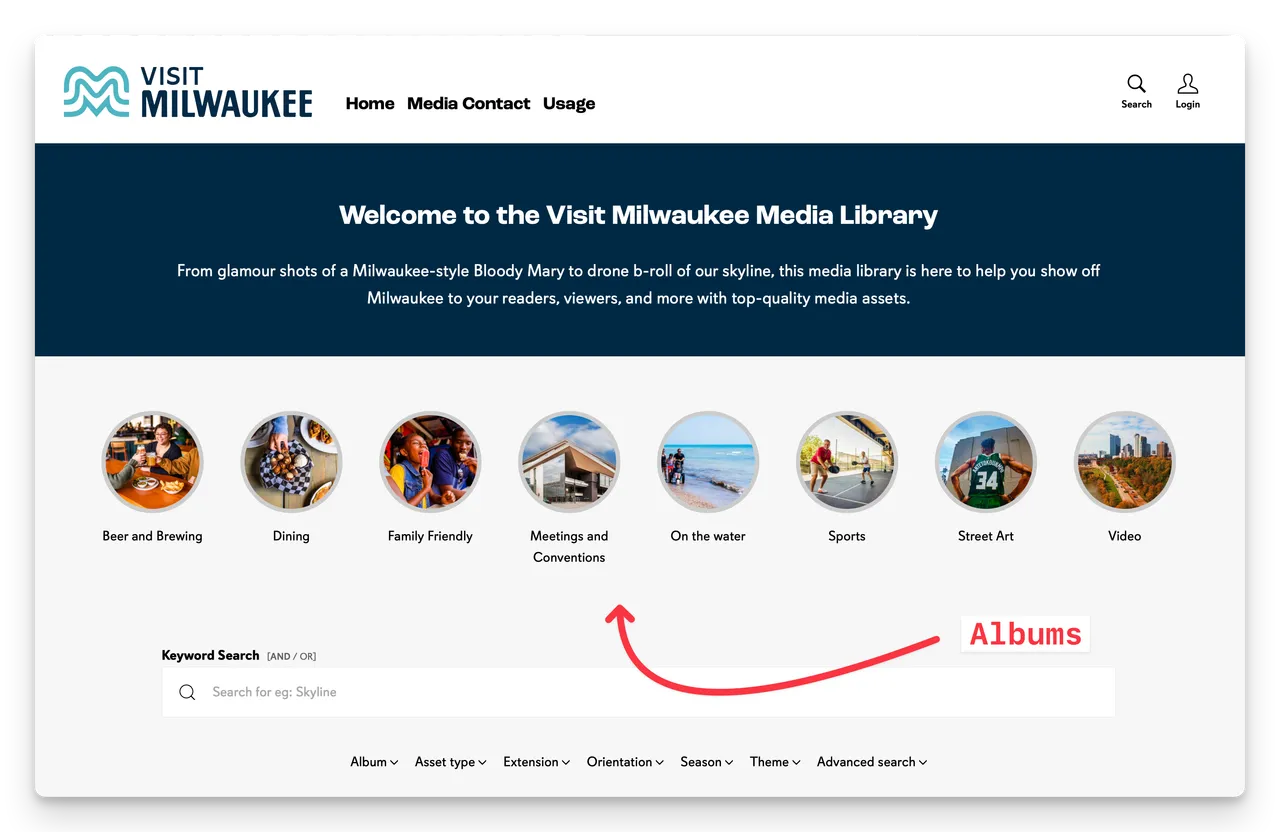
Albums are an important way to organise assets into browsable collections. Think of them as folders, but more flexible — an asset can appear in multiple albums, and albums automatically update based on the saved search query.
Go to Assets > Albums to manage them.
Creating an album
- Click + New album (top right of the Albums view).
- Enter a name and optional description.
- Set a Search Query
- Select an Image from the DAM for an Album Cover.
- Select Approved to publish
- Save.
Adding assets to an album
Assets are added to Albums automatically based on the saved Search Query in the Album.
To add a new Asset to the Album just upload or create an Asset and edit the metadata or tags so it meets the Search Query parameters for the Album.
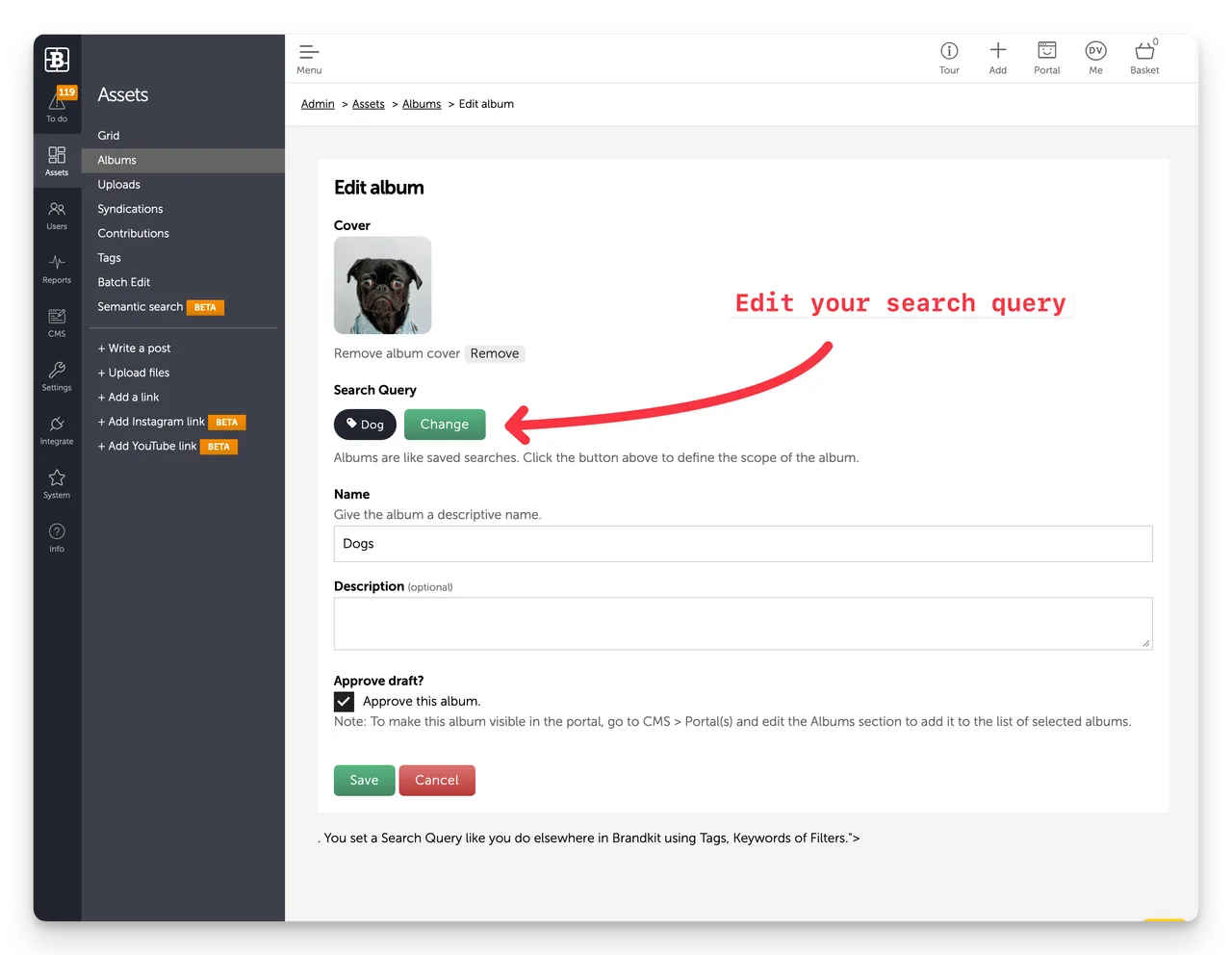
e.g. if the Search Query is set to find Assets tagged with "Dog", just upload a new image and tag it Dog (and Approve it to publish). Because the Tag matches the Album's Search Query the new image will be shown in the Album.
You can also:
- Edit — change name, description, search query, album cover, or approval state.
- Delete — remove the album (assets are not deleted, only unlinked)
Albums in Portal
Albums by default are displayed in the standard Portal design layouts on the home page - but for Pro and Enterprise Edition accounts Albums may appear elsewhere.
Settings
- You can set Albums to appear automatically in the Portal when approved (all editions). This is the default setting for new accounts. You'll find this setting in Settings > Albums.
- When you have access to the CMS features (Pro and Enterprise editions) you can selectively show or hide and re-order Albums in the CMS page editor for any CMS page where the Albums section is used.
- You can also show/hide albums in different sections (and on different pages) shown to different User Role Groups (Pro and Enterprise editions)
- Albums are sorted alphabetically in the Admin area. In the Portal you can change the sort order by moving them up or down the stack of Albums in an Album section of a CMS page (Pro and Enterprise editions).
- You can configure Albums to appear as centered and scrollable circular buttons or as a larger grid of rectangular images. These can be further styled with CSS in your Theme file (Pro and Enterprise editions).
Tips
- Use albums to mirror how your users think about your brand — by campaign, by market, by asset type.
- Setup Filters (Settings > Filters) first to reflect how you and your users categorize your content, then use those same Filters for your Album Search Queries.
- Album are generally visible to all Roles but Assets inside them are subject to User Role visibility settings.
- Albums can be shown to specific User Roles via Personalisation (Pro and Enterprise plans)
OM3.2 Assets > Albums
Albums are an important way to organise assets into browsable collections. Think of them as folders, but more flexible — an asset can appear in multiple albums, and albums automatically update based on the saved search query.