New Feature: Collections with Sub-Collections (aka nested Albums)
Remember when all your images, videos and marketing assets were stored in folders, sub-folders, sub-sub-folders and sub-sub-sub-folders?
Remember folder diving?
Sub-Collections let you group related Collections under one parent Collection Group. Users can browse your Portal the way they'd browse folders, without the downsides of folders.
Why not just use folders?
In a DAM, folders are generally a bad idea. At Brandkit we don't use them (Vaults are the only exception).
We prefer a flat hierarchy, where everything is one level deep, and a tag-based system for organising and finding assets.
That said, many customers and users still "think in folders".
Our Collections feature (previously called Albums) already supports this way of thinking. Collections let you organise and present assets in a way that makes sense to your users, and that matches how your team groups content internally.
Sub-Collections take this one step further, giving you nested collections (or nested albums) without folders.
What are Sub-Collections?
You can now create Collections in three ways:
- Saved search – a Collection based on a saved search query.
- Selected assets – a Collection based on a list of hand-picked assets (added in August 2026).
- Group (new) – a Collection Group that contains other Collections. These become its Sub-Collections.
How do I create Sub-Collections in Brandkit?
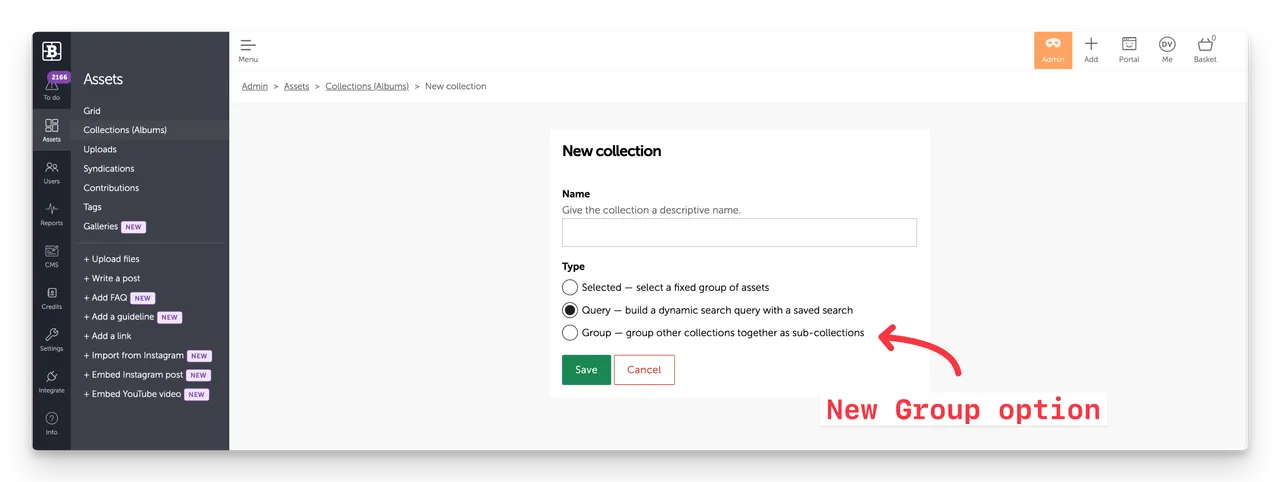
When creating a Collection, select the new Group option.
- Go to Admin > Assets > Collections.
- Click + New Collection (top right).
- Add a Collection Name.
- Select the Group option.
- Click Save.
- Select a Cover image from the published assets in your Asset Library.
- Choose your Sub-Collections by ticking the checkbox next to each existing Collection you want to include.
- Tick Approve draft when it's ready to go live. Or leave it as a draft, save, and approve it later.
- Click Save.
How do I add Sub-Collections to my Portal?
- Create a Collection Group (see above).
- Make sure the Collection Group is Approved.
- If Auto-add Collections is turned on (in Settings > Collections), your Collection Group is added automatically to any Search page that includes a Collections section. Collections are turned on by default in standard setups. Custom setups may need them turned on manually.
- If Auto-add Collections is turned off, and you have CMS access^, add the Collection Group to your layout manually (and reorder if needed) in the Collections section of your page(s).
- For custom pages edited in the CMS, you may need to add the Collection Group manually to any Collections sections you have set up.
If you're unsure or need help, contact Brandkit Support.
^ CMS access is not available on Team Edition plans.
How do Sub-Collections appear in the Portal?
Collection Groups and their Sub-Collections have two layout options: Horizontal and Grid.
You set the layout in the Collections smart section on each page where Collections (aka Albums) appear. Horizontal is the default.
Horizontal layout (default)
Collections are shown in a row that scrolls sideways.
When a user clicks a Collection Group's cover its Sub-Collections expand below it. Users can then click a Sub-Collection cover to search for Asset in that Sub-Collection.
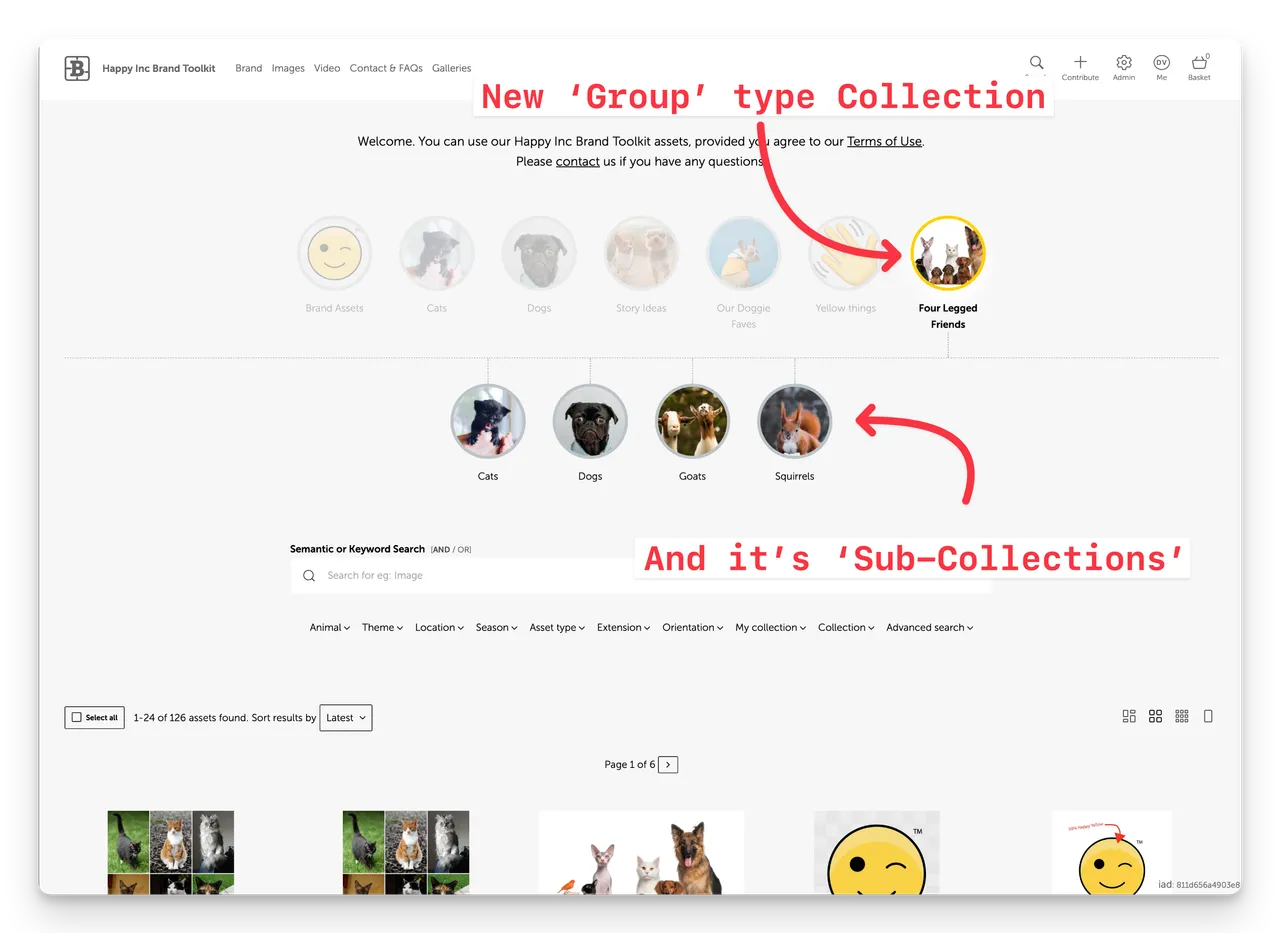
Users can then refine the results by adding search terms in the search box, or by using the Search Filters.
Grid layout (optional)
Collections are shown in a grid that wraps onto new lines, with no sideways scrolling.
When a user clicks a Collection Group, no Sub-Collections expand. The search results simply update to show every asset from all its Sub-Collections combined.
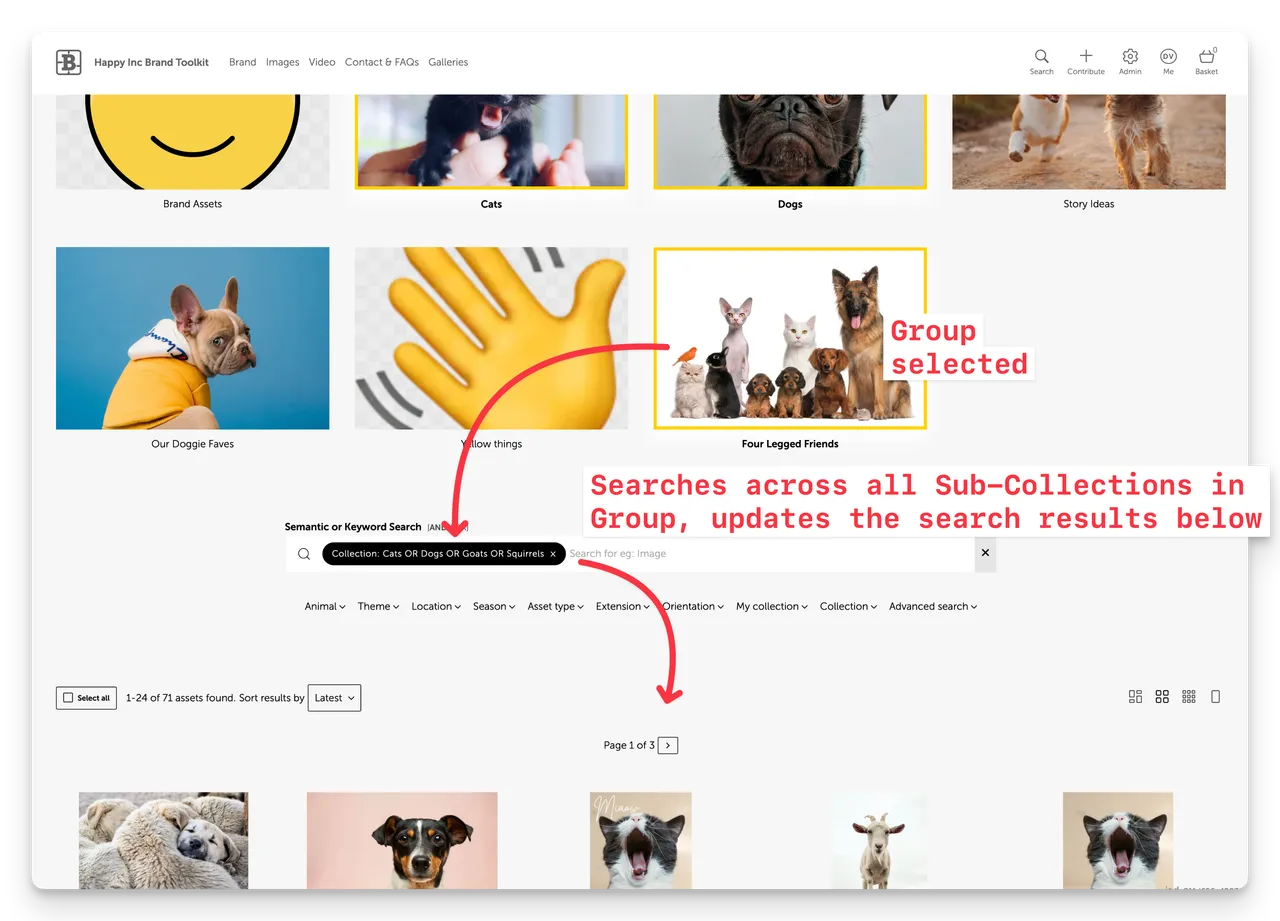
Users can refine the results by adding search terms in the search box, or by using the Search Filters.
FAQ
What's the difference between a Collection and a Sub-Collection?
A Sub-Collection is just an ordinary Collection that has been added to a Collection Group. It still works as a Collection on its own.
Do I need CMS access to use Sub-Collections?
Not if auto-add Collections is turned on. You only need CMS access to add a Collection Group manually, or to add it to custom pages, or to manually change the order it appears on the page (alphanumeric order by default).
Which layout should I use?
Use Horizontal (the default) if you want users to see and drill into Sub-Collections. Use Grid if you just want one click to show everything in the group.
Get started
Sub-Collections are available now. Contact us if you'd like a hand setting them up.
Enjoy :)
New Feature Sub-Collections (aka nested Albums)
Brandkit’s new Sub-Collections feature lets you group collections into a navigable hierarchy—bringing a familiar folder-like experience to your digital asset portal. Create Collection Groups, choose a cover image, and display grouped assets in horizontal or grid layouts.