New Feature: Collections with Sub-Collections (aka Sub-Albums)
Remember back in the day when all your images, videos, and marketing assets were stored folders, sub-folders,sub-sub folders, and sub-sub-sub folders, and so on?
Remember folder diving?
When it comes to DAM systems folders are generally a bad idea - and at Brandkit we don't use them (Vaults being the only exception).
We prefer a flat hierarchy (everything is one level deep) and a Tag based system of organizing and finding Assets.
That said many customers and users still conceptually "think in folders".
We already have a feature called Collections (previously named Albums) that neatly address this way of thinking.
Collections also help companies organize and present Assets for discovery in way that makes sense to end users, and matches they way the company buckets or categorizes content internally.
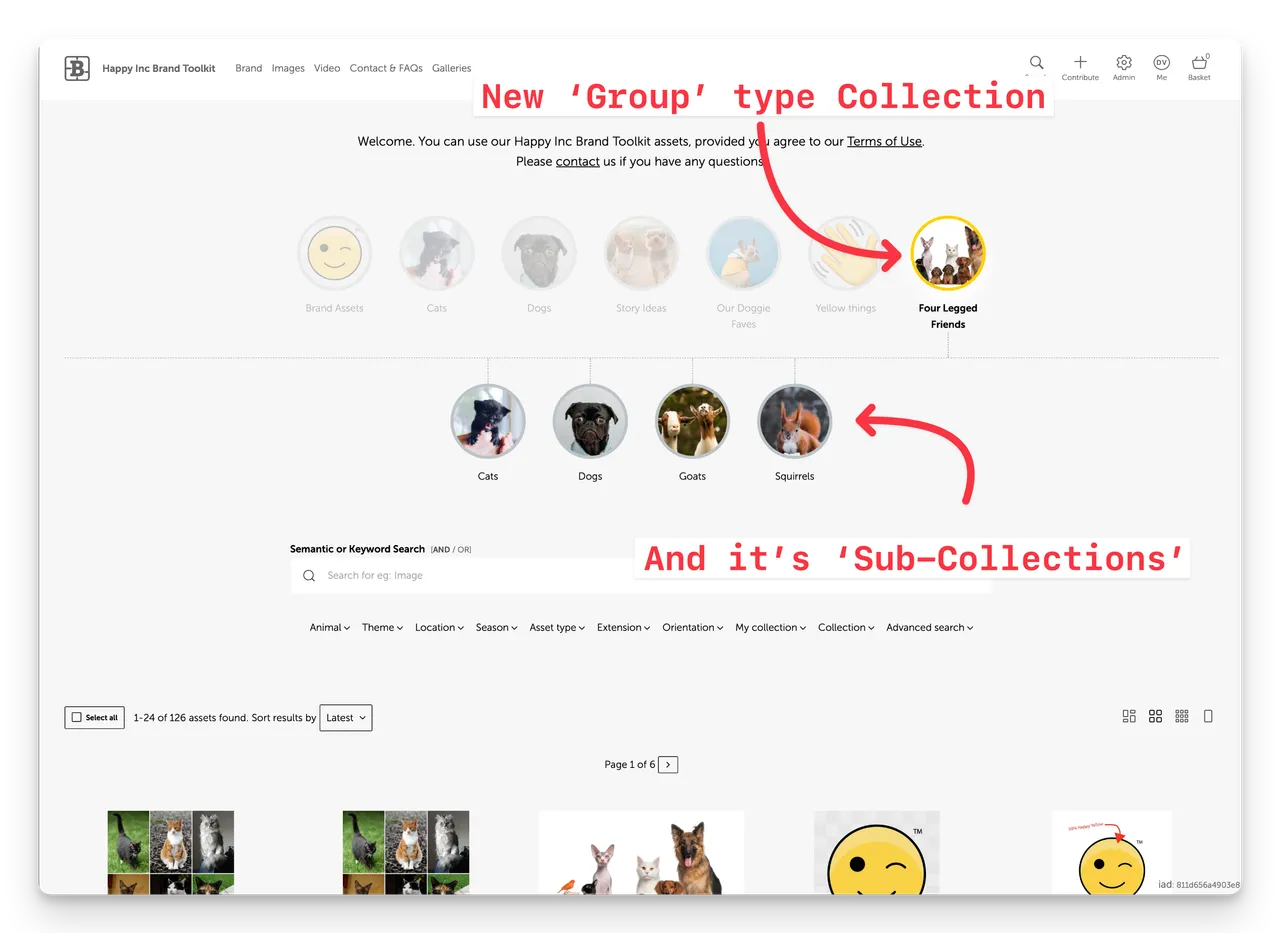
A new Collections option
You have been able to create Collections for some time now based on a Saved Search Query. Back in August we added the ability to created Collections based on a list of explicitly selected Assets.
Now we are introducing a third option, the ability to create Sub-Collections by creating a Group type Collection.
How to create Sub-Collections
When creating a Collection select the new Group type option.
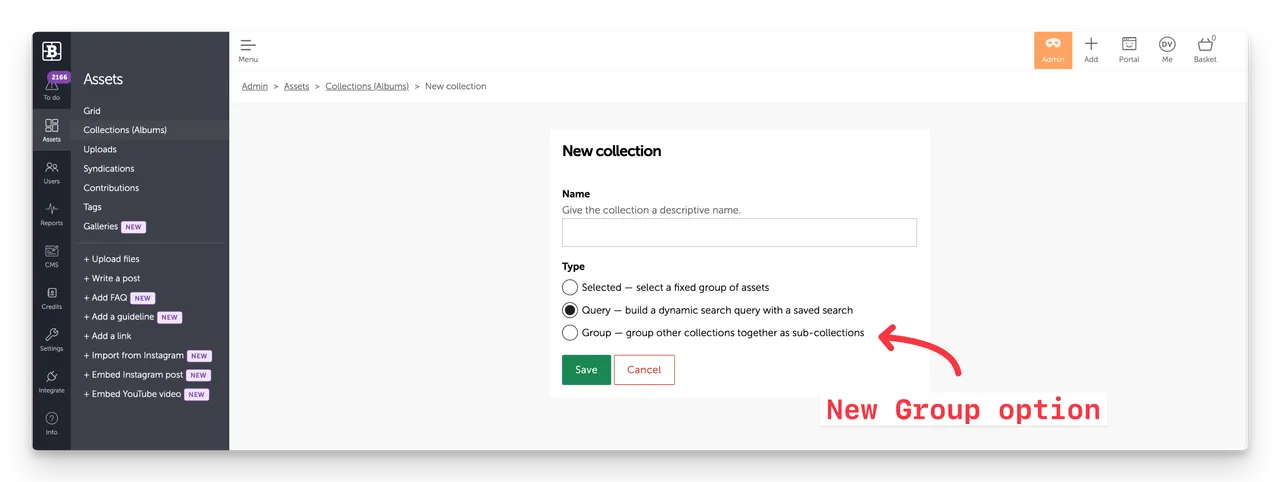
- Navigate to Admin > Assets > Collections
- Click the + New Collection button top right.
- Add a Collection Name
- Select the Group option
- Click Save
- Select Cover image (enables you to select a thumbnail from your published assets in your Asset Library).
- Select your Sub Collections by selecting any existing Collections you want to include, using the checkbox next to each Collection.
- Approve draft - if you are happy that it is ready to appear in your Portal. You can leave unchecked/in-draft and Save below - and come back later to approve it if you prefer.
- Save
How to add Sub-Collections to your Portal
- Create a Collection Group (as above)
- Ensure the collection is Approved
- If you have auto-add collections enabled (in Settings > Collections), your Collection Group will be automatically added to your Search pages where the Collections section is included (Collections are enabled by default on standard setups - but may need to be manually enabled for custom setups).
- If you have auto-add collections disabled (in Settings > Collections), and you have CMS access^, you will have to manually add the new Collection Group to your layout (and reorder if necessary).
- In custom pages edited in the CMS, you may have to manually add the new Group Collection to any Collections section(s) you have setup.
If you are unsure or need help please contact Brandkit Support
^ CMS access is not available in Team Edition plans.
How are Sub-Collections shown in the Portal
There are two presentation options in the Portal dependent on the layout selected for the Collections Section of each page.
Horizontal Layout
This layout presents collections in a horizontally scrollable layout.
If this layout is selected - when clicking the Album Cover of a Group Collection, the Sub-Collections pop-down below the selected Group and the Search Grid updates to show all the Assets contained in the Group (essentially an OR search of the sub-collections).
Users can then select an Sub-Collection Album Cover to refine the Search Results further.
Grid Layout
This layout presents collections in a grid format that wraps to a new line and is not sideways scrollable.
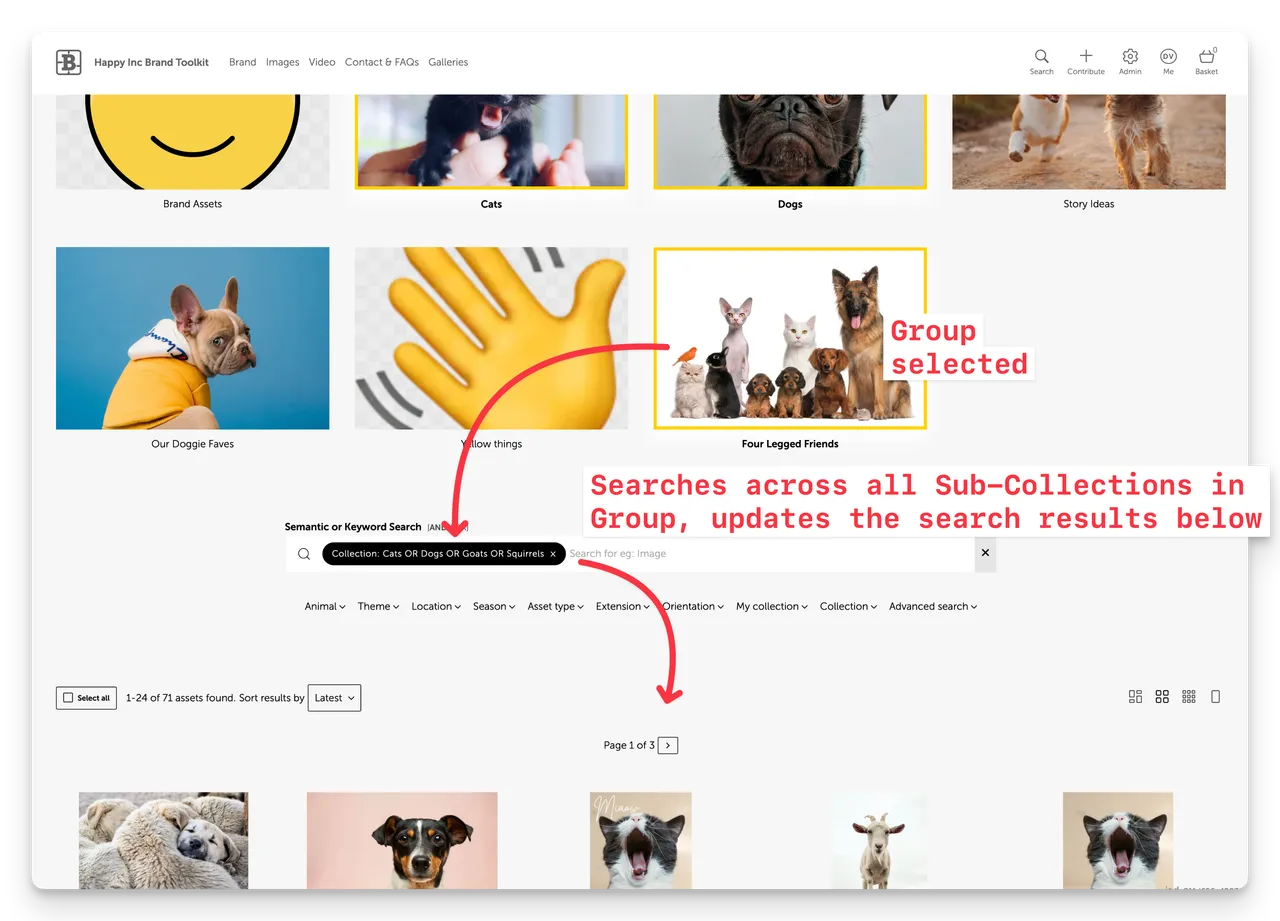
If this layout is selected - when clicking a Group Collection, there is no sub-collection pop-up or pop-down at all.
Instead the search result just updates to show all the Assets contained in the Group (Finds Assets across all the Group's Sub-Collections).
Search results can then be refined further by adding additional search phrases in the search box, or by using the drop-down Search Filters.
Enjoy :)
New Feature Sub-Collections (aka Sub-Albums)
Brandkit’s new Sub-Collections feature lets you group collections into a navigable hierarchy—bringing a familiar folder-like experience to your digital asset portal. Create Collection Groups, choose a cover image, and display grouped assets in horizontal or grid layouts.