New Feature: Collection Redirects
We're introducing a further update to Collections (aka Albums) in Brandkit with a new Redirect option for Collections.
What are Collection Redirects?
Collection Redirect is a useful new addition to Brandkit that helps customise the visual navigation in your Brand Portal.
It uses the Collections feature in Brandkit to create a visual button, that sits alongside other Collections —in a Collections section in your Portal.
Redirects are essentially visual shortcuts that redirect Portal users to another page in the Portal, or to an external link.
While you could already add a link to another page using native HTML in the CMS - this is a new way to incorporate a redirect link, in a row or grid of Collections, that is visually pleasing, and convenient for Admins - without having to dig into HTML code.
One of the common requests from customers we get, is to redirect to a new landing page with subset of Assets. )e.g. A Knowledge Library Page with Knowledge Assets only, or perhaps a Brand Identity Page with Brand Guidelines, Logos, Font Assets only).
In the past we have manually built Collection Grids with redirect links on some of the tiles to sub-collection landing pages - now this much easier and faster to do - with the Redirect option
Four Collection type options
You can now create Collections in four ways:
- Query – a Collection based on a saved search query.
- Selected Assets – a Collection based on a list of hand-picked assets 3. Group (new) – a Collection Group that contains other Collections. These become its Sub-Collections.
And now...
4. Redirect - a visual button that links to a specified URL.
How do I create a Redirect?
When creating a Collection, select the new Redirect option.
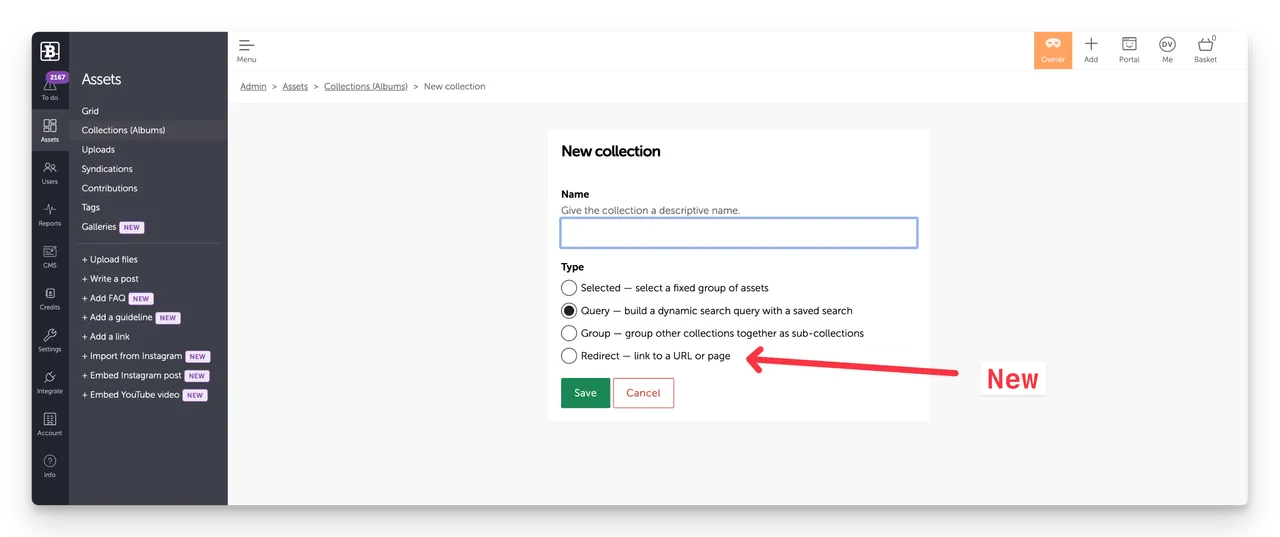
- Go to Admin > Assets > Collections.
- Click + New Collection (top right).
- Add a Collection Name.
- Select the Redirect option.
- Click Save.
- Select a Cover image from the published assets in your Asset Library.
- Enter the URL of the page or link you want to redirect to.
- Tick Approve draft when it's ready to go live. Or leave it as a draft, save, and approve it later.
- Click Save.
How do I add Collection Redirects to my Portal?
- Create a Collection Redirect (see above).
- Make sure the Collection Redirect is Approved.
- If Auto-add Collections is turned on (in Settings > Collections), your Collection Redirect is added automatically to any Search page that includes a Collections section. Collections are turned on by default in standard setups. Custom setups may need them turned on manually.
- If Auto-add Collections is turned off, and you have CMS access^, add the Collection Redirect to your layout manually (and reorder if needed) in the Collections section of your page(s).
- For custom pages edited in the CMS, you may need to add the Collection Redirect manually to any Collections sections you have set up.
If you're unsure or need help, contact Brandkit Support.
^ CMS access is not available on Team Edition plans.
How do Collection Redirects appear in the Portal?
Collection Redirects appears as a visual button or tile alongside other Collection types. Visually they are identical to the other Collections.
When users click on a Collection Redirect, the browser will open the URL that has been set,
Collection Redirects can appear at the top level or as a nested sub-collection.
FAQ
What's the difference between a Collection and a Sub-Collection?
A Sub-Collection is just an ordinary Collection that has been added to a Collection Group. It still works as a Collection on its own.
Do I need CMS access to use Collection Redirects?
Not if auto-add Collections is turned on. You only need CMS access to add a Collection Redirect manually, or to add it to custom pages, or to manually change the order it appears on the page (alphanumeric order by default). However, if you want to build a custom landing page to redirect to - yes you will need CMS access (or ask the Brandkit team to build a custom landing page for you).
Which layout should I use?
For Collection Redirects - either layout works equally well. However we thing this will be particularly useful for customers who prefer a Grid layout.
Get started
Collection Redirects are available now. Contact us if you'd like a hand setting them up.
Enjoy :)
New Feature: Collection Redirects
Brandkit Collection Redirects let admins add visual buttons to Portal Collections that link to internal pages or external URLs. Create and approve a redirect, then add it automatically or manually to a Collections section.