OM3.1: Assets > Grid
Grid
The Grid shows all assets in your library as thumbnails. It is the primary way to browse, search, and manage your content.
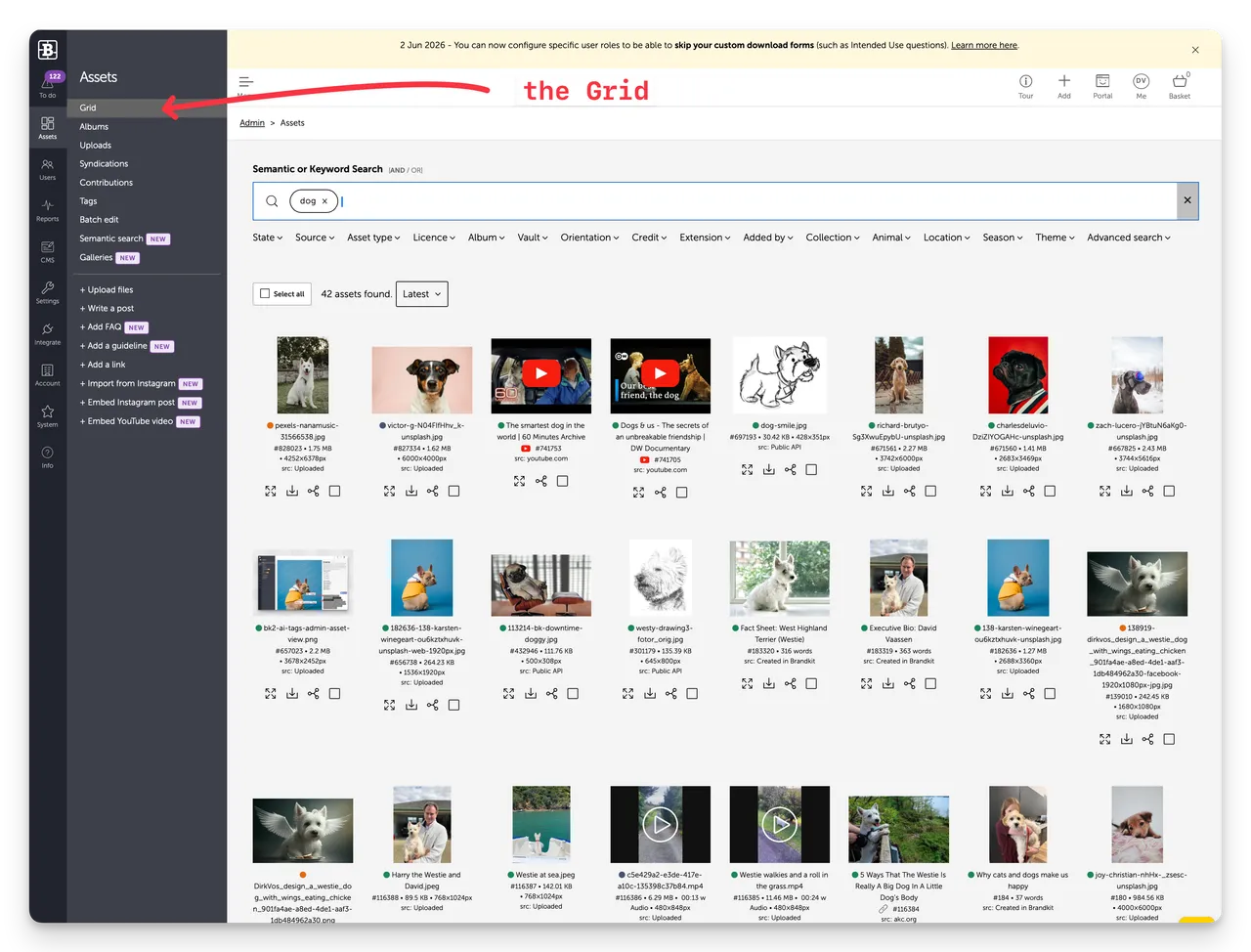
Searching and filtering
At the top of the Grid is a search bar that supports both keyword and semantic search. Below it, a row of filter dropdowns lets you narrow results by:
State, Source, Asset type, Licence, Album, Vault, Orientation, Credit, Extension, Added by, Collection, Blog topic, Brand guidelines, Category, Competitors, Help topic, Industry, Resources, SEO keywords
Use AND / OR toggle to control whether multiple filters narrow or broaden your results.
Asset states
Assets can be in one of several states:

- Active — visible to users in the Portal with appropriate access
- Draft — hidden from the portal and regular users; admin-only. Also the default state on upload or create.
- Unreleased — before their release date
- Expired — past their expiry date
- Archived - has been archived
- Deleted - has been deleted
Standard Filters
You can further refine your search results by selecting a standard filter dropdown to add an additional search facet (search parameter).
These include:
- Source
- Asset Type
- Licence
- Vault
- Orientation
- File extension
- Added by (the user that uploaded or created the asset)
- Collection ( filter by your previously saved collections)
Custom Filters
You can further refine your search results by selecting a custom filter dropdown to add an additional search facet (search parameter).
You set these up in (1) Settings > (2) Filters to match the way your company categorizes your own content.
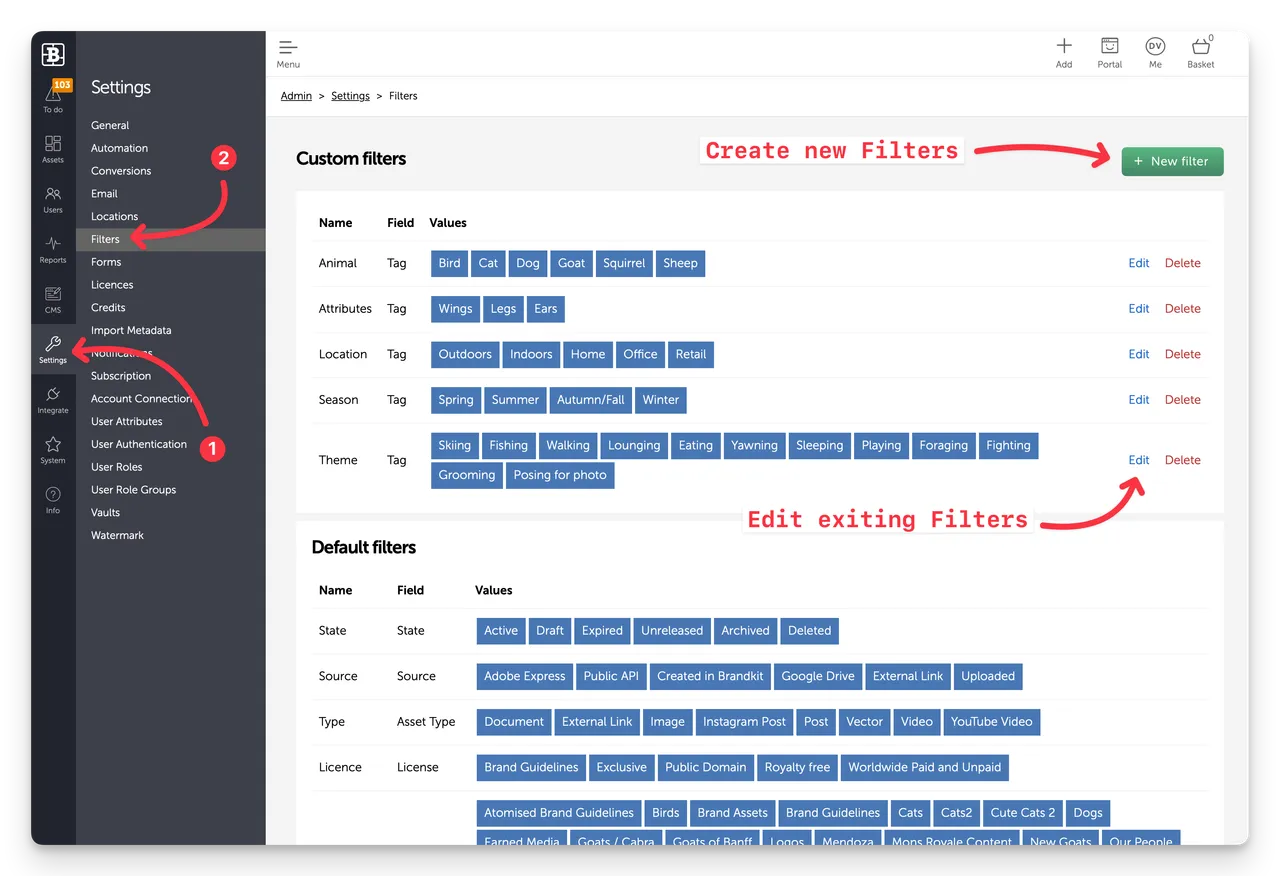
An example for a Place Brand organization might be by theme:
Theme
- Live
- Work
- Visit
- Invest
- Study
Search Results
Sorting
Use the sort dropdown (default: Latest) to reorder results by date, name, or other criteria.
Asset cards
Each asset card shows:
- Thumbnail
- File name
- File size and dimensions
- Source (Uploaded, Created in Brandkit, etc.)
- A status dot indicating publish state
Selecting assets
Tick the checkbox on one or more asset cards to select them, or use Select all to select the full result set. Selected assets are added to the Basket for bulk actions.
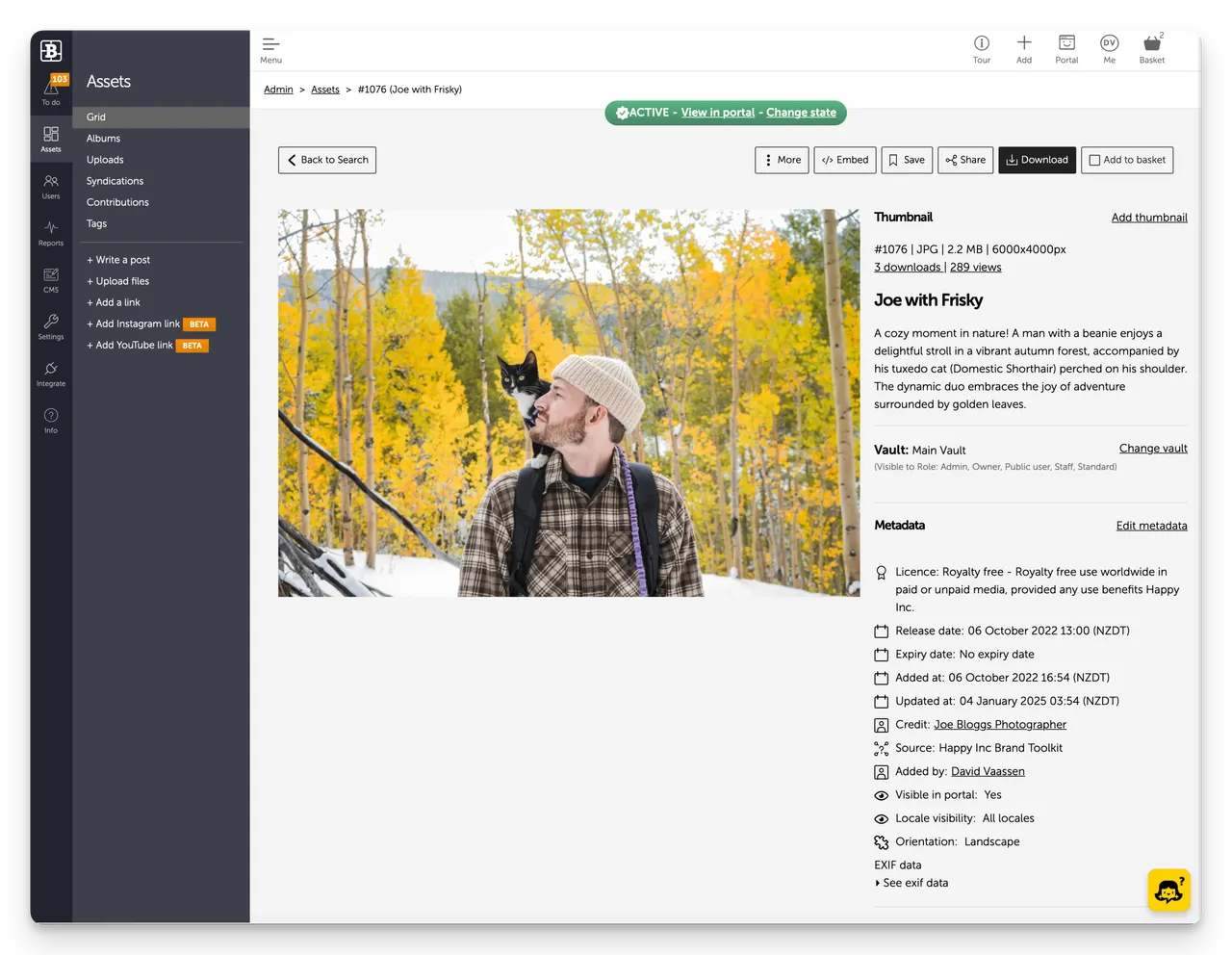
Navigate to the Asset's detail page
Click the Thumbnail or name of the Asset to open the Asset's detail page.
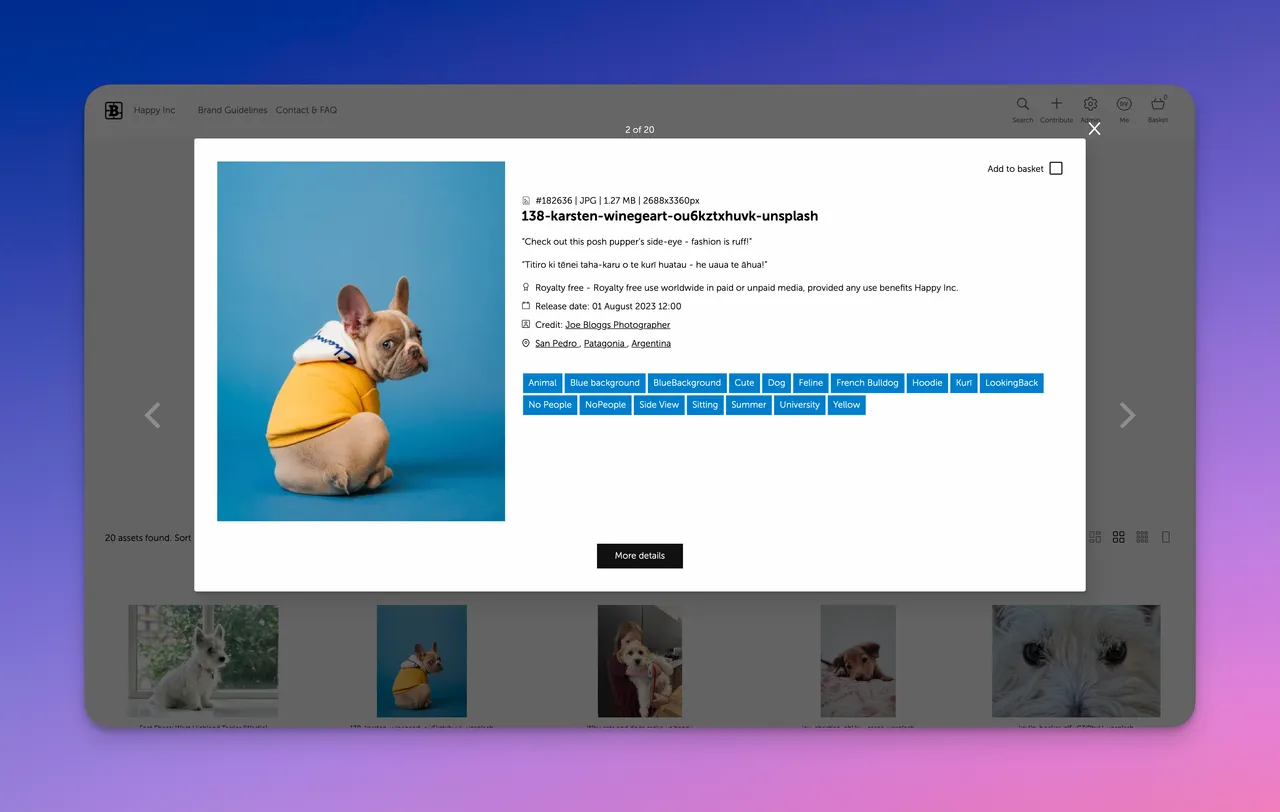
In some cases if you have the Asset Preview Modal feature enabled in your settings (Settings > General) clicking an Asset in the Grid will open a modal with a further click of the More details button required to see the Asset's page.
Pro Tip: If the Preview Modal option is enabled you can click the additional (far left) icon under the Assets in the Grid to open the Asset page directly.
Download and Share
You can also Download and Share one asset at a time directly from the Grid by selecting the Download or Share icon underneath each Asset in the Grid.
OM3.1: Assets > Grid
The Grid shows all assets in your library as thumbnails. It is the primary way to browse, search, and manage your content.