OM4.1: Admin > Users > Users
Overview
The Users page shows everyone who is registered to access to your Brandkit account. From here you can view, search, edit, and manage all registered users across your Brandkit account.
Navigate to Admin > Users > Users
What you'll see
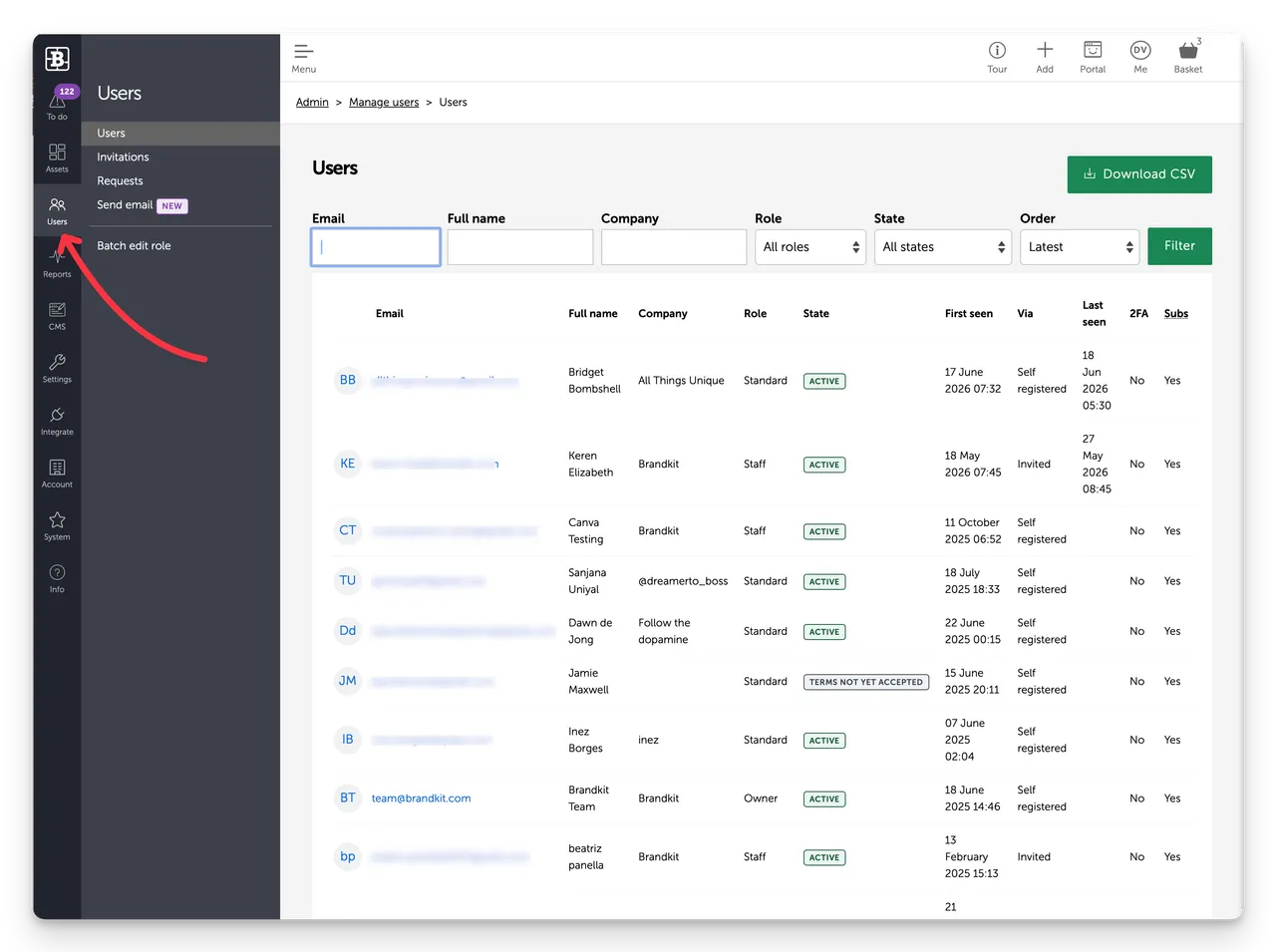
- Download CSV button - download a full list of Users as a CSV file.
- A Table showing each user as a row with Filters above - use Filters to search or refine the table rows
Each row in the Users list shows:
- Avatar
- Email address
- Name
- Company
- Role (Brandkit User Role)
- State (Brandkit User Status)
- First seen (date of first interaction with the account)
- Via (By Invitation or self-registered)
- Last seen (date of last interaction)
- 2FA (does user have 2FA enabled)
- Subs (is the User Subscribed to marketing emails*)
Use the search bar and filters to find specific users by name, email, role, or status.
Note that Marketing Emails (e.g. New Content Alerts) are distinct from system transactional emails. (e.g. Share email)
Viewing and editing a user
Admins can edit any user (except user with the Owner Role), Owners can edit Admins and Owners.
Click anywhere in the User's row to open their profile.
From here you can:
- Update their name or email address
- Change their user role
- View their activity history
- Suspend or reactivate their account
- Download their personal data (to send to the user on request to meet privacy regulation requirements in many markets)
- Delete their personal data (You cannot Delete a user record because we need maintain the user record for historical reporting, but you can anonymise the user account by deleting the user's personal data to comply with Privacy Regulations - this effectively blocks the use of this User account)
Suspending a user
Suspending a user prevents them from logging in without deleting their account or activity history. Useful when someone leaves the organisation temporarily or their access needs to be paused.
- Open the user profile
- Click Suspend account
To reactivate, open the profile and click Reactivate account.
Deleting a user
We don't support Delete users accounts because we want to retain the User History for auditing purposes.
You can Suspend instead. This block the User from login in again or registering with the same email address.
Related settings
- To configure user roles and permissions, go to Admin > Settings > User roles
- To configure user attributes (custom profile fields), go to Admin > Settings > User attributes
- To configure authentication options, go to Admin > Settings > User authentication
OM4.1: Admin > Users > Users
The Users page shows everyone who is registered to access to your Brandkit account. From here you can view, search, edit, and manage all registered users across your Brandkit account.