Does Brandkit offer a Passkey option?
Yes since 15 Nov 2026, Brandkit now offers a Passkey option - suitable for biometric (fingerprint or FaceID) login.

What is a Passkey and why is it useful
A passkey is a modern, password-free way to sign in. Instead of a password, it uses a cryptographic key pair — one part stored securely on your device, one part held by the service — to verify your identity.
Why it's better than a password:
- No password to forget or reuse — there's nothing to remember
- Phishing-resistant — passkeys only work on the real site, so fake login pages can't steal them
- Faster sign-in — authenticate with Face ID, Touch ID, Windows Hello, or your device PIN
- More secure by default — your credentials are never transmitted or stored as plain text
When you sign in to Brandkit with a passkey, your device confirms it's really you, then silently proves your identity to Brandkit — no password required.
Passkeys are supported on most modern devices and sync across your Apple, Google, or Windows account, so you're not locked to a single device.
How to a setup a Passkey when registering
When registering Users can setup a Passkey as an alternative to a Password or both.
- Click register to display the Register page
- Add your email address, we'll send you a validation email
- When you receive the validation email click the Validation link to open the confirmation page
- Click the Confirm button
- The select the Passkey option by clicking the Add a passkey button

- Follow the instructions
- Finish by completing your User Profile
Once complete and logged in you;ll be able to see your Passkey in your User Profile under the Me menu in the top right navbar. You can optionally set a Password and a 2FA code as well if you wish to from your User Profile page.
How to set-up a Passkey when you are already registered
- Login
- Click the Me menu item in the top right menu in the navbar.
- Select My profile in the drop-down
- Scroll down to the Passkey section
- Click Add Passkey

- Follow the on-screen instructions

Once the Passkey has been added it will be shown in your user profile (My Profile) page. Multiple Passkeys are supported.

You can also remove any Passkey and start again if you wish to.
Can I have both a Password and a Passkey ?
Yes you can set up your user account with either a Password or a Passkey, or both a Password and a Passkey at the same time.
If you have both setup - you can login with either method. Although Passkey is more secure and if you wanted to chose a single option we'd recommend the Passkey option.
Note : that if you have 2FA also enabled for your user account —you will have to enter your 2FA code irrespective of which login method you use (Password or Passkey).
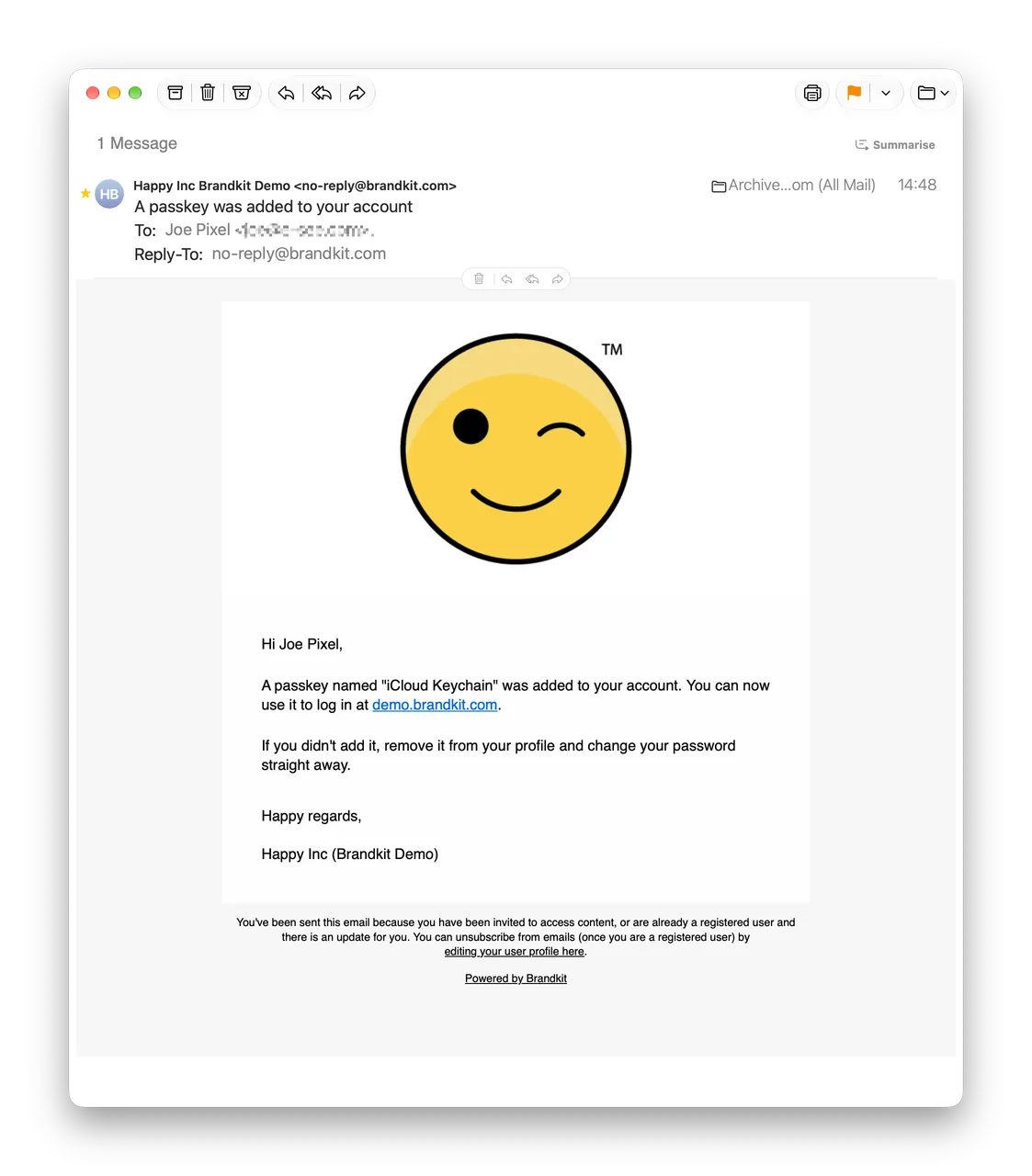
Email confirmation will be sent
When you add a Passkey we email you with a confirmation and as an extra security measure - in case it wasn't you that added it.
I have Two Factor Authentication (2FA) set up in my user profile - do I need to keep using that.
Totally up to you. If it's not mandated - then you could delete it and use Passkey instead (as it's generally more convenient). Or if you are really worried about security - you can use both.
Happy days :)
Does Brandkit offer a Passkey option?
Brandkit supports passkeys for secure, password-free sign-in using Face ID, Touch ID, Windows Hello, or a device PIN. Learn how to add a passkey during registration or from your profile, use it alongside a password, and manage two-factor authentication.